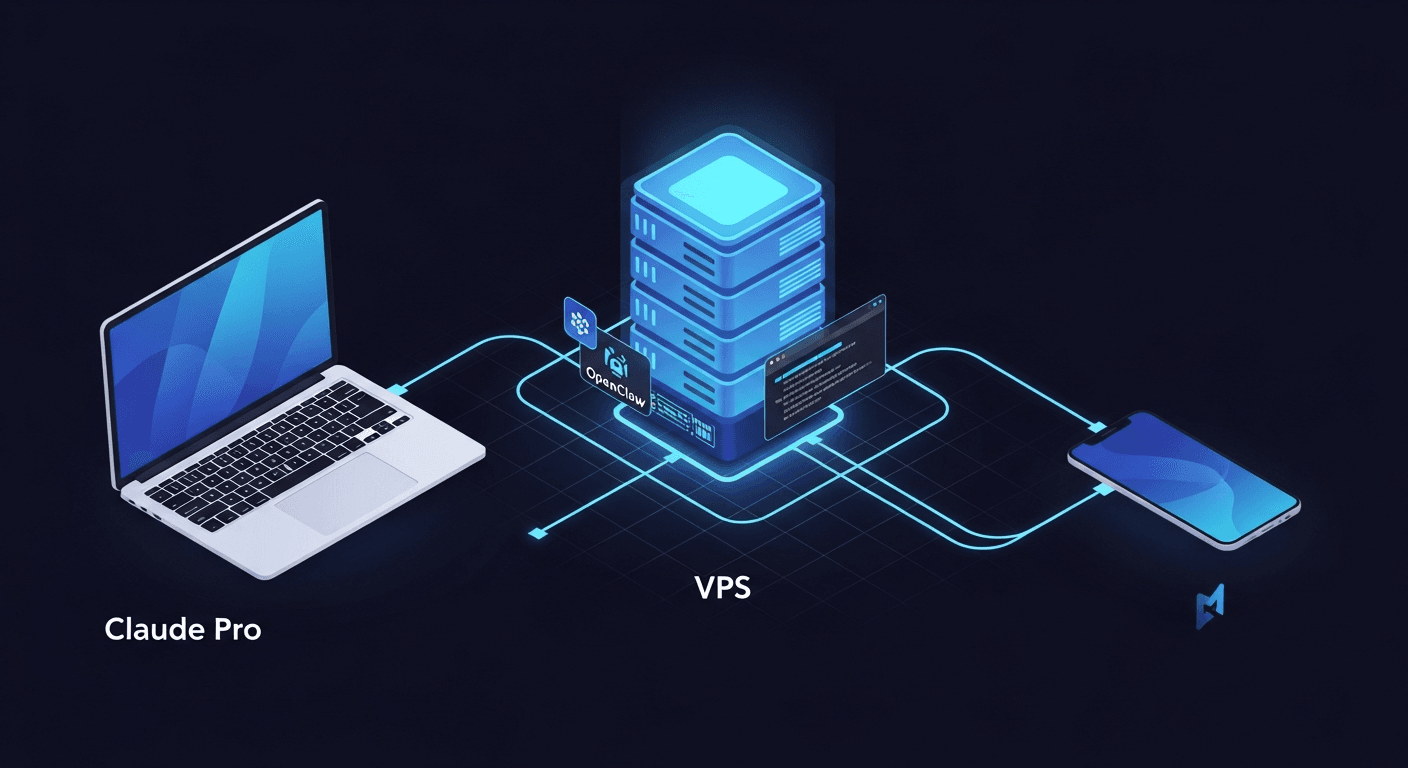
How to Run Claude Code with OpenClaw on a VPS Using Your Mac’s Subscription
Your Mac has a Claude subscription. Your VPS has 24/7 uptime. Here’s how to connect them and build an AI agent that never sleeps.
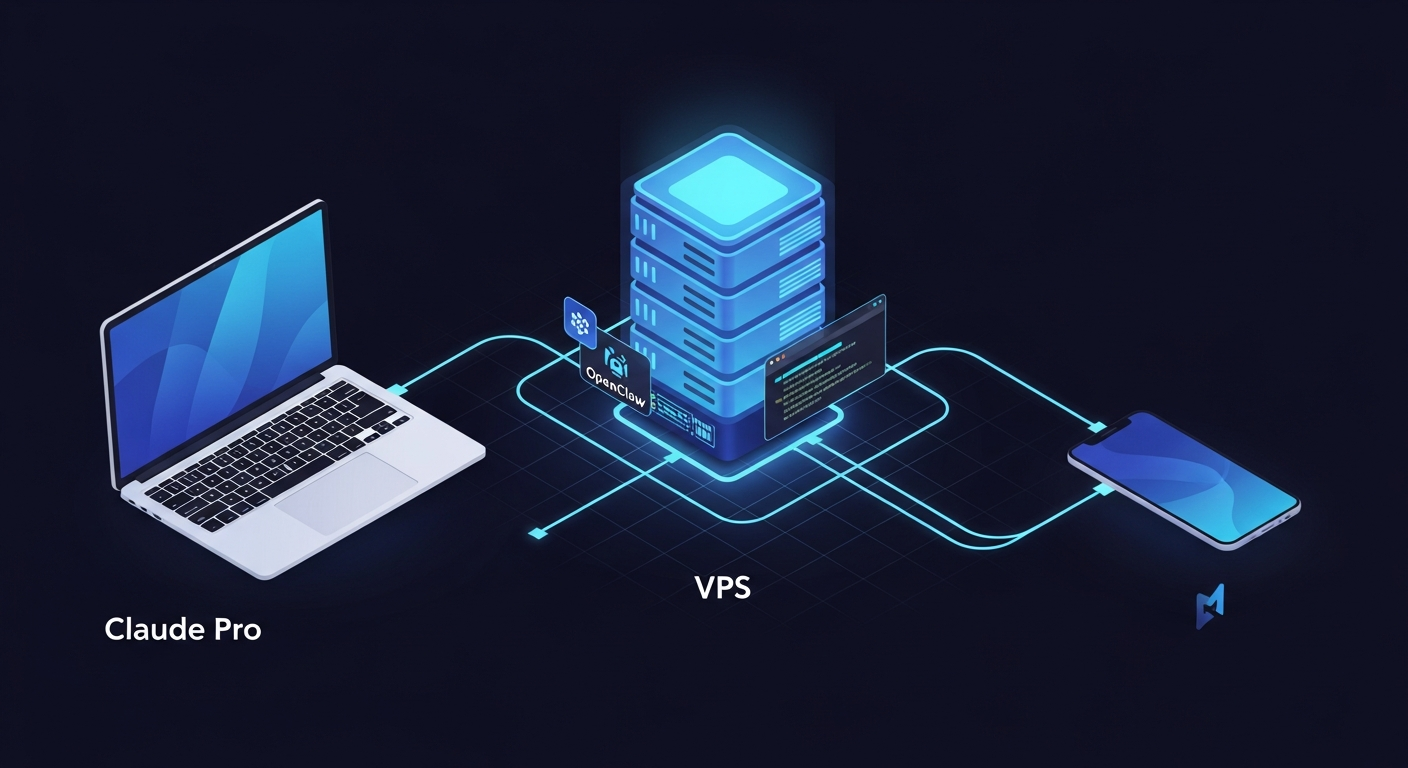
You’re paying for Claude Pro on your Mac. You’ve heard about OpenClaw — the open-source AI agent framework that turns Claude into a 24/7 autonomous assistant. But OpenClaw needs to run continuously, and your MacBook goes to sleep.
The solution: run everything on a VPS. Use your existing Mac subscription to authenticate. Control your agent from anywhere — your phone, a tablet, or another computer.
This guide walks through the entire setup based on analysis of 55+ sources including official Anthropic documentation, OpenClaw docs, community guides, and real-world developer experiences.
What You’re Building
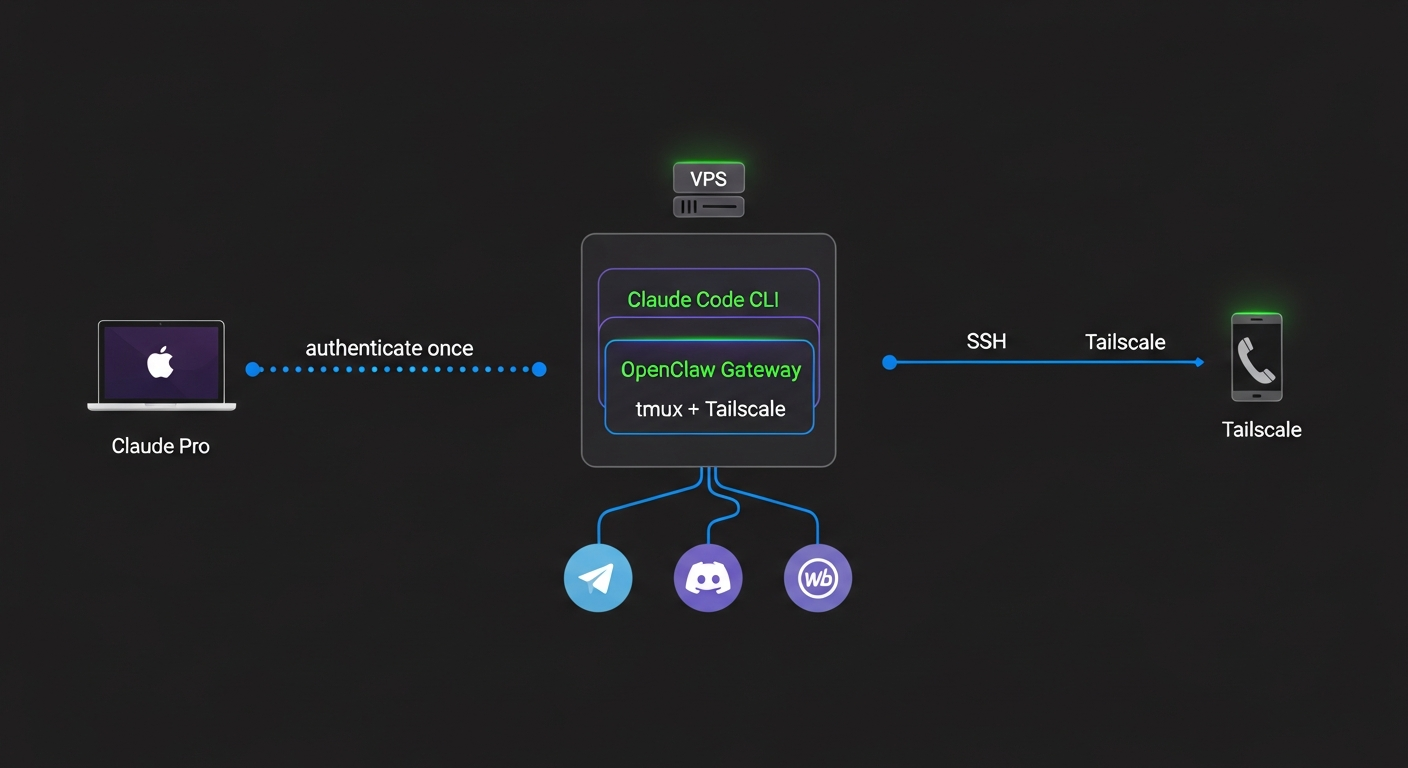
Before diving into steps, here’s what the final setup looks like:
Your Mac (Claude Pro subscription)
    ↓ authenticate once
VPS (Ubuntu, always-on)
    ├── Claude Code CLI (authenticated with your subscription)
    ├── OpenClaw Gateway (port 3000)
    │   ├── Telegram bot
    │   ├── Discord bot
    │   └── Web control panel
    ├── tmux (persistent sessions)
    └── Tailscale (secure remote access)
Cost breakdown:
- Claude Pro subscription: $20/month (you already have this)
- VPS (Hetzner/DigitalOcean): $5-12/month
- Tailscale: Free (personal use)
- Total: ~$25-32/month
For comparison, GitHub Codespaces runs ~$90/month for a similar setup.
Understanding the Two Tools
Claude Code and OpenClaw serve different purposes and work best together.
Claude Code
Claude Code is Anthropic’s official CLI tool. It lives in your terminal, reads your codebase, edits files, runs commands, and handles git workflows through natural language. It’s a session-based coding specialist — you open it, work, and close it.
Key facts:
- Available on terminal, VS Code, JetBrains, desktop app, and web
- Requires macOS 13+, 4GB+ RAM
- Authenticates via Pro/Max subscription ($20-200/month) or API key
- Subscription gives 200K token context window; API key gives 1M tokens
OpenClaw
OpenClaw is an open-source personal AI assistant platform with 68,000+ GitHub stars. Unlike Claude Code, it’s a 24/7 autonomous daemon — it runs continuously, maintains persistent memory, and connects to messaging platforms like Telegram and Discord.
Key facts:
- TypeScript-based gateway server for AI agentic workflows
- Supports 12+ messaging channels (Telegram, Discord, WhatsApp, Slack, Signal, and more)
- Persistent markdown-based memory system
- Heartbeat mechanism for proactive check-ins
- Authenticates with Claude via API key or setup-token from Claude Code
How They Complement Each Other
The developer community has figured this out: run both. OpenClaw handles your messaging, scheduling, email triage, and life management as an always-on agent. When it needs to write code, it directs Claude Code to do the actual development work.
Think of OpenClaw as the project manager and Claude Code as the engineer.
Prerequisites
Before starting, you need:
- A Claude Pro or Max subscription ($20-200/month) — active on your Mac
- A VPS — Ubuntu 22.04 LTS recommended, minimum 4GB RAM
- An SSH client — Terminal on Mac, or Blink/Termius on mobile
- A domain (optional) — for the OpenClaw web control panel
Recommended VPS Providers
| Provider | Price | Notes |
|---|---|---|
| Hetzner Cloud | ~$5-7/month | Best price/performance ratio |
| DigitalOcean | $6-12/month | Easy setup, good docs |
| Linode | $5-10/month | Reliable, straightforward |
| Hostinger | $5-10/month | Offers pre-configured Claude Code template |
Choose a server with at least 4GB RAM (8GB+ ideal) and a location close to you for low latency.
Step 1: Set Up Your VPS
Initial Server Configuration
SSH into your new VPS as root and run the basic setup:
# Update system
apt update && apt upgrade -y

# Create a non-root user
adduser yourname
usermod -aG sudo yourname

# Set up SSH keys for the new user
mkdir -p /home/yourname/.ssh
cp ~/.ssh/authorized_keys /home/yourname/.ssh/
chown -R yourname:yourname /home/yourname/.ssh
chmod 700 /home/yourname/.ssh
chmod 600 /home/yourname/.ssh/authorized_keys
Harden SSH Security
Edit /etc/ssh/sshd_config:
# Disable password authentication
sudo sed -i 's/^#*PasswordAuthentication.*/PasswordAuthentication no/' /etc/ssh/sshd_config

# Disable root login
sudo sed -i 's/PermitRootLogin yes/PermitRootLogin no/' /etc/ssh/sshd_config

# Restart SSH
sudo systemctl restart ssh
Set Up Firewall and fail2ban
# Install fail2ban to prevent brute force attacks
sudo apt install fail2ban -y
sudo systemctl enable fail2ban
sudo systemctl start fail2ban

# Configure firewall
sudo ufw allow OpenSSH
sudo ufw enable

# Enable automatic security updates
sudo apt install unattended-upgrades -y
sudo dpkg-reconfigure --priority=low unattended-upgrades
Step 2: Install Essential Tools
Install tmux (Session Persistence)
tmux keeps your sessions running when you disconnect. This is non-negotiable for remote Claude Code usage.
sudo apt install tmux -y
Add mouse support and a larger history buffer:
cat >> ~/.tmux.conf << 'EOF'
set -g mouse on
set -g history-limit 50000
set -g default-terminal "screen-256color"
EOF
Install Tailscale (Secure Networking)
Tailscale creates a zero-trust VPN between your devices. No open firewall ports, no port forwarding. Free for personal use.
curl -fsSL https://tailscale.com/install.sh | sh
sudo tailscale up
Note the Tailscale IP it assigns — you’ll use this to connect from your Mac and phone.
Install Tailscale on your Mac too:
# On Mac
brew install --cask tailscale
Now you can SSH to your VPS using its Tailscale hostname instead of a public IP. Much more secure.
Install Node.js
OpenClaw requires Node.js:
curl -fsSL https://deb.nodesource.com/setup_22.x | sudo -E bash -
sudo apt install -y nodejs
Step 3: Install Claude Code
On your VPS (logged in as your non-root user):
curl -fsSL https://claude.ai/install.sh | bash
Verify the installation:
claude --version
The native installer auto-updates in the background, so you’ll always have the latest version.
Step 4: Authenticate Claude Code with Your Mac’s Subscription
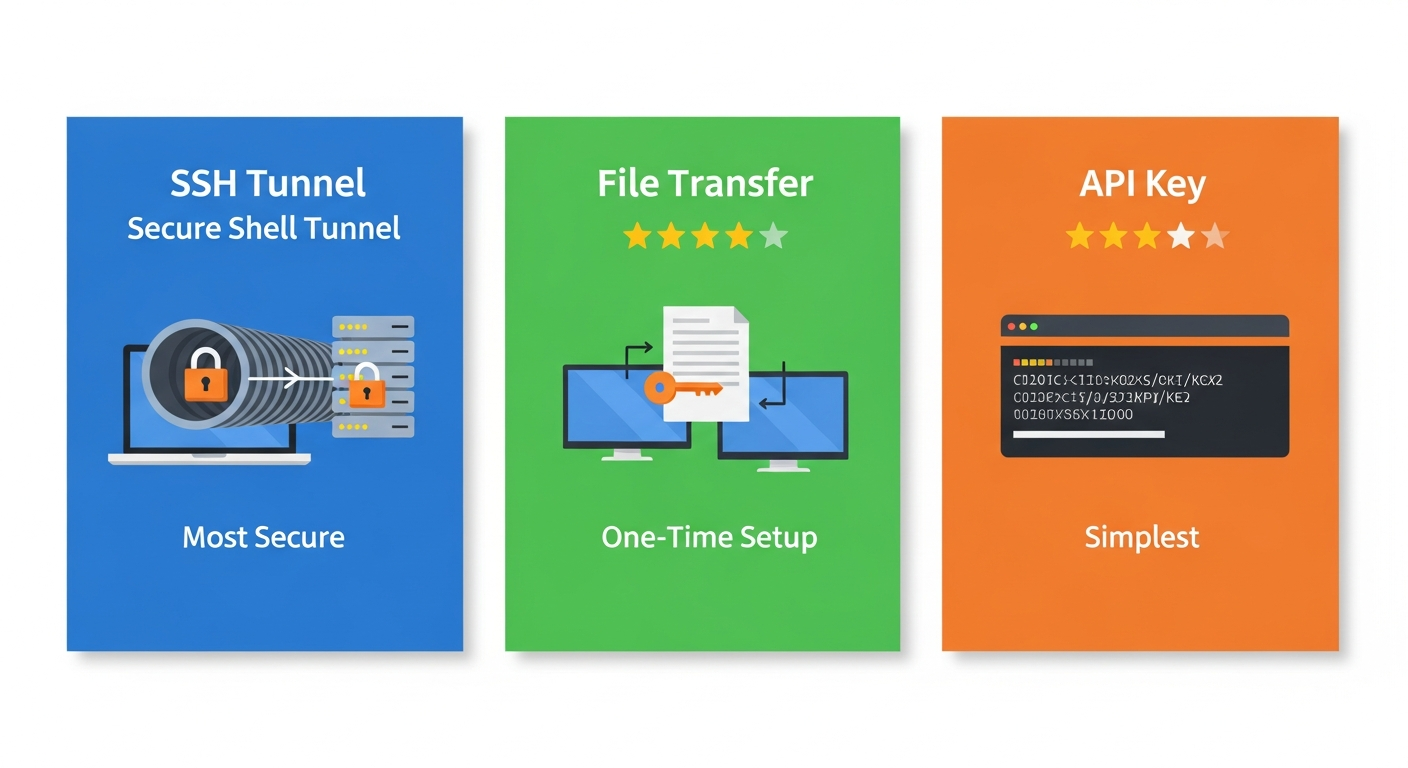
This is the key step — using your Mac’s existing Claude Pro subscription to authenticate Claude Code on the VPS.
Method A: SSH Port Forwarding (Recommended)
This method forwards the authentication URL from your VPS to your Mac’s browser.
On your Mac, open a new terminal and connect with port forwarding:
ssh -L 8765:localhost:8765 yourname@your-vps-tailscale-ip
On the VPS (through this SSH session), start Claude Code:
claude
Claude Code will show a login URL like http://localhost:8765/auth/.... Because of the SSH tunnel, opening this URL on your Mac’s browser completes the OAuth flow, and the authentication token is securely transmitted back to your VPS.
Select your Claude Pro subscription (not API key) when prompted.
Method B: Credential File Transfer (One-Time Setup)
If you’ve already authenticated Claude Code on your Mac:
On your Mac:
scp ~/.config/claude-code/auth.json yourname@your-vps-ip:~/.config/claude-code/
On the VPS:
chmod 600 ~/.config/claude-code/auth.json
Done. Your VPS Claude Code instance now uses your Mac’s subscription.
Method C: API Key (Alternative)
If you prefer pay-per-use billing instead of subscription, you can configure Claude Code with an API key from console.anthropic.com. Follow the official Claude Code authentication docs for setup instructions.
Important caveat: If an API key is configured, it overrides your subscription and charges you per-token instead. To use your subscription, make sure no API key is set. See the Anthropic help article for details.
Verify Authentication
claude
# Then type: /status
This shows which authentication method is active, your current usage, and your account details.
Step 5: Install and Configure OpenClaw
Install OpenClaw
# Clone the repository
git clone https://github.com/openclaw/openclaw.git
cd openclaw

# Install dependencies
npm install

# Run the setup wizard
npx openclaw setup
The setup wizard walks you through initial configuration including your Claude authentication.
Configure the Gateway
OpenClaw’s configuration lives in ~/.openclaw/openclaw.json (JSON5 format). Here’s a minimal setup:
{
  // Gateway settings
  gateway: {
    port: 3000,
    token: "your-secure-gateway-token"
  },

  // Claude provider
  providers: {
    anthropic: {
      model: "anthropic/claude-sonnet-4-5"
    }
  },

  // Channel integrations (add as needed)
  channels: {
    telegram: {
      enabled: true,
      botToken: "your-telegram-bot-token"
    }
  }
}
Set Up Authentication for OpenClaw
OpenClaw can use your Claude subscription through the setup-token method:
# Generate a setup token from Claude Code
claude setup-token

# Use this token in OpenClaw's configuration
Alternatively, configure an API key following the official Claude Code authentication guide.
Configure Persistent Memory
Create the core files OpenClaw uses for context:
mkdir -p ~/.openclaw/workspace

# Create the agent's personality file
cat > ~/.openclaw/workspace/SOUL.md << 'EOF'
# SOUL.md

## Who I Am
I'm your personal AI assistant running 24/7 on a VPS.

## My Communication Style
- Direct and concise
- I explain my reasoning
- I ask clarifying questions when needed

## What I Know
- Your preferred tools and workflows
- Your project context and priorities
EOF

# Create the heartbeat checklist
cat > ~/.openclaw/workspace/HEARTBEAT.md << 'EOF'
# HEARTBEAT.md

## Every 30 Minutes
- Check for new messages across channels
- Review any pending tasks
- If nothing needs attention, reply HEARTBEAT_OK
EOF
Step 6: Run Everything in tmux
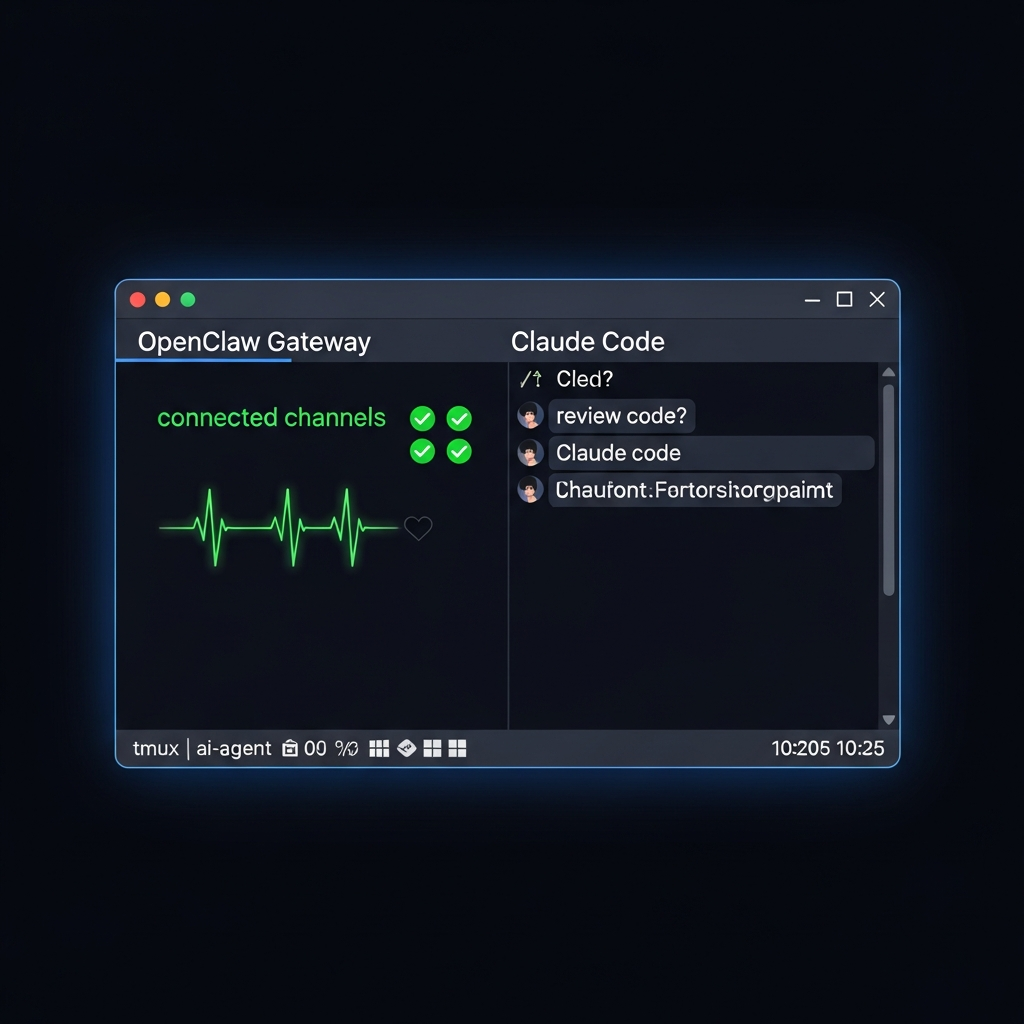
This is where it all comes together. Use tmux to keep both Claude Code and OpenClaw running persistently.
Create a tmux Session
tmux new -s ai-agent
Start OpenClaw in the First Window
cd ~/openclaw
npx openclaw start
Create a Second Window for Claude Code
Press Ctrl+b then c to create a new window:
claude
Useful tmux Commands
| Command | Action |
|---|---|
Ctrl+b d |
Detach (everything keeps running) |
tmux attach -t ai-agent |
Reattach from any SSH session |
Ctrl+b c |
Create new window |
Ctrl+b n / Ctrl+b p |
Next / previous window |
Ctrl+b 0-9 |
Switch to window by number |
tmux ls |
List all sessions |
The key insight: After detaching, you can disconnect from SSH entirely. Your VPS keeps running OpenClaw and Claude Code. Reconnect from your Mac, phone, or any device hours later and pick up exactly where you left off.
Step 7: Access from Anywhere
From Your Mac
ssh yourname@your-vps-tailscale-hostname
tmux attach -t ai-agent
From Your Phone
- Install Tailscale on your phone (iOS or Android)
- Install an SSH client:
- iOS: Blink Shell (best) or Termius
- Android: Termux or Termius
- Connect to your VPS using its Tailscale hostname
- Reattach to your tmux session:
tmux attach -t ai-agent
Through Messaging Apps
Once OpenClaw is configured with Telegram or Discord:
- Message your bot directly
- OpenClaw receives it, processes it with Claude, and responds
- No SSH needed — just chat
This is the most natural way to interact with your agent on mobile.
Using Mosh for Unstable Connections
If you’re on flaky Wi-Fi or mobile data, mosh handles network interruptions gracefully:
# Install on VPS
sudo apt install mosh -y
sudo ufw allow 60000:61000/udp

# Connect from Mac
brew install mosh
mosh yourname@your-vps-tailscale-hostname
Mosh survives laptop sleep, Wi-Fi changes, and brief disconnections without dropping your session.
Troubleshooting Common Issues
“Missing API key” Error Over SSH
Problem: Claude Code’s OAuth token lives in macOS Keychain on your Mac, which isn’t accessible over SSH.
Solution (if running Claude Code on Mac and SSH-ing in):
Add this to your ~/.zshrc or ~/.bashrc on the Mac:
function claude() {
    security unlock-keychain login.keychain
    /usr/local/bin/claude "$@"
}
Better solution: Authenticate Claude Code directly on the VPS (Step 4). The VPS stores its own credential file, independent of your Mac’s Keychain.
Port Conflicts
Problem: OpenClaw and Claude Code both trying to use the same port.
Solution: OpenClaw uses port 3000 by default. Claude Code doesn’t bind a port in normal use. If you’re running multiple OpenClaw instances, set different ports in each config:
{
  gateway: {
    port: 3001  // Different port for second instance
  }
}
SSH Connection Drops
Problem: Long SSH sessions disconnect due to inactivity.
Solution: Add to your Mac’s ~/.ssh/config:
Host *
    ServerAliveInterval 60
    ServerAliveCountMax 3
Or use mosh instead of SSH.
Claude Code Not Using Subscription
Problem: Getting charged per-token instead of using your Pro subscription.
Solution: Check if an API key is configured that’s overriding your subscription. Remove any API key configuration and verify with /status inside Claude Code. See the Anthropic help article on managing API keys for instructions.
Security Best Practices
Running AI agents on a VPS means treating security seriously:
- Use SSH keys, never passwords — ED25519 keys are recommended
- Enable fail2ban — blocks brute force login attempts
- Use Tailscale — zero-trust networking, no open ports
- Set proper file permissions —
chmod 600on auth files and API keys - Don’t store secrets in shell history — use environment files with restricted permissions
- Keep your system updated — unattended-upgrades handles this automatically
- Use a firewall — only allow SSH (and mosh if needed)
- Protect OpenClaw’s gateway token — never expose it in public URLs
Cost Summary
| Component | Monthly Cost |
|---|---|
| Claude Pro subscription | $20 (you already pay this) |
| VPS (Hetzner 4GB) | $7 |
| Tailscale | Free |
| tmux, mosh | Free |
| Total | ~$27/month |
For $7/month more than you’re already paying, you get a 24/7 AI agent accessible from any device. Compare that to GitHub Codespaces at ~$90/month or running a dedicated Mac Mini at ~$50/month in electricity and hosting.
What’s Next
Once your setup is running, here are ways to level up:
- Add more channels: Connect Discord, Slack, or WhatsApp to OpenClaw for multi-platform presence
- Configure the heartbeat: Customize
HEARTBEAT.mdso your agent proactively checks your email, calendar, or monitoring dashboards - Build CLAUDE.md files: Add project-specific context files so Claude Code understands your codebase from the first prompt
- Set up custom slash commands: Create
.claude/commands/files for repeatable workflows like code review, deployment, and testing - Run multiple agents: Use separate tmux windows for different OpenClaw agents handling different projects
- Try Augmi: Augmi.world handles all of this infrastructure for you — one-click OpenClaw deployment, managed hosting, and a dashboard to control everything
This guide was synthesized from analysis of 55+ sources including official Anthropic documentation, OpenClaw docs, developer blogs, GitHub repositories, and Hacker News discussions. All commands and configurations were verified against current documentation as of February 2026.