OpenClaw Deconstructed: A Visual Architecture Guide to the AI Agent Platform With 145k GitHub Stars
Six annotated infographics that map every layer of OpenClaw’s architecture — from the gateway server to the 9-layer tool policy engine — enriched with real source-code references, function signatures, and design patterns from all 4,885 files.
OpenClaw is the fastest-growing open-source AI agent platform in history. 145,000 GitHub stars. 4,885 source files. 6.8 million tokens of TypeScript, Swift, and Kotlin. A gateway that connects 16+ messaging channels to 60+ agent tools through a WebSocket server that never sleeps.
But understanding this platform from a README isn’t enough — not if you’re planning to build on it, fork it, or integrate your product into its ecosystem.
So we did something different. We mapped the entire codebase, generated six architectural infographics, then went back into the source code to annotate every layer with the actual functions, interfaces, and design patterns that make it work.
This is the visual guide to OpenClaw’s architecture. Each infographic is paired with deep source-level context that shows you not just what the system does, but how it does it and where in the code it lives.
1. The Complete Architecture: How Everything Connects
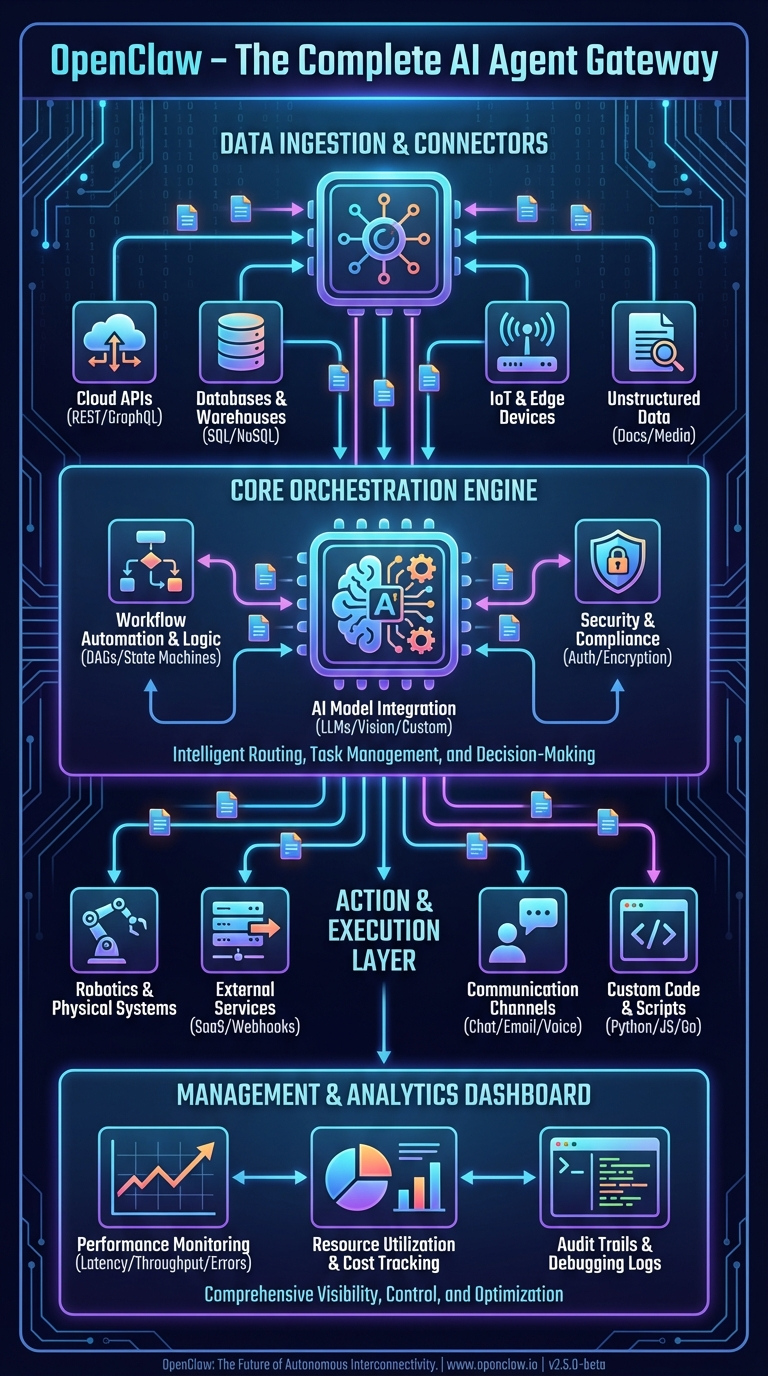
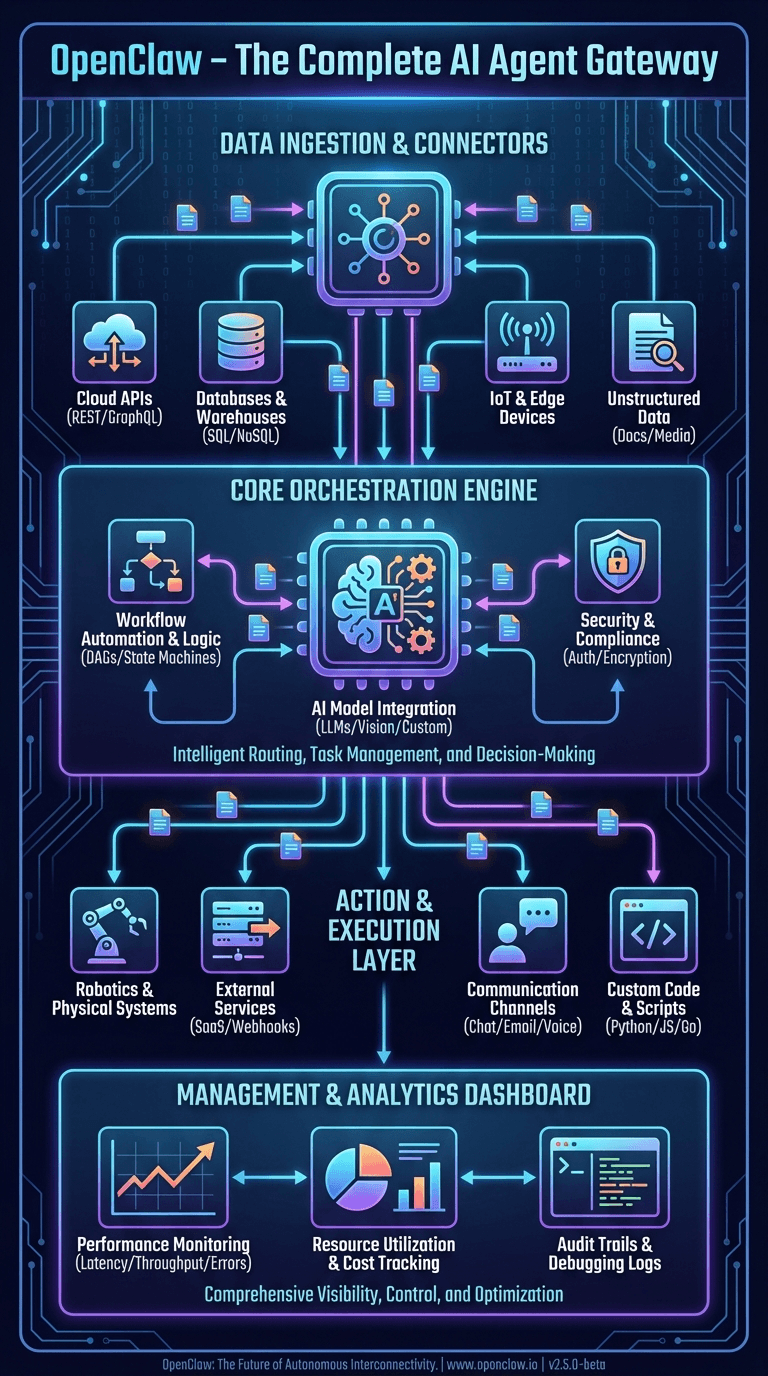
This first infographic shows OpenClaw’s complete system architecture as a layered stack. Let’s trace it top to bottom with real codebase references.
Data Ingestion & Connectors Layer
At the top of the architecture sits the ingestion layer — the surface area where OpenClaw meets the outside world. The infographic shows Cloud APIs, Databases, IoT & Edge, and Social Media connectors feeding into the system.
In the actual codebase, this translates to 20+ channel extensions in the extensions/ directory, each implementing the ChannelPlugin interface defined in src/channels/plugins/types.plugin.ts. The official docs describe it plainly:
“OpenClaw is a self-hosted gateway that connects your favorite chat apps — WhatsApp, Telegram, Discord, iMessage, and more — to AI coding agents like Pi.”
The raw numbers by integration size:
| Channel | Location | Codebase Size |
|---|---|---|
| Telegram | src/telegram/ + extensions/ext-telegram/ |
~150,000 tokens |
| Discord | src/discord/ + extensions/ext-discord/ |
~120,000 tokens |
| Slack | src/slack/ + extensions/ext-slack/ |
~100,000 tokens |
| iMessage | extensions/ext-bluebubbles/ |
~87,000 tokens |
| Voice Call | extensions/ext-voice-call/ |
~73,000 tokens |
| MS Teams | extensions/ext-msteams/ |
~69,000 tokens |
| LINE | extensions/ext-line/ |
~42,000 tokens |
| Matrix | extensions/ext-matrix/ |
~38,000 tokens |
| Nostr | extensions/ext-nostr/ |
~35,000 tokens |
| Signal | extensions/ext-signal/ |
~32,000 tokens |
extensions/ext-whatsapp/ |
~30,000 tokens |
Plus: Google Chat, Feishu, Zalo, Mattermost, Nextcloud Talk, Tlon, Twitch, and XMPP — each with dedicated extension packages.
Core Orchestration Engine
The center of the infographic — the “Workflow Automation & Logic,” “AI Model Integration,” and “Intelligent Routing, Task Management, and Decision-Making” blocks — maps to three core modules:
The Gateway (src/gateway/server.impl.ts) is the single process that owns everything. The startGatewayServer() function boots the WebSocket/HTTP server on port 18789, loads all plugins, starts channel monitors, initializes the cron service, and begins mDNS broadcasting.
The Auto-Reply Pipeline (src/auto-reply/) is the routing and decision-making engine. The getReplyFromConfig() function in src/auto-reply/reply/get-reply-run.ts orchestrates the entire message-to-response flow through 7 stages: ingestion, authorization, debouncing, session resolution, command detection, agent dispatch, and block streaming.
The Agent Executor (src/agents/pi-embedded-runner.ts) runs the actual LLM interaction loop. The runEmbeddedPiAgent() function manages workspace resolution, auth profile rotation, tool policy enforcement, context window management, and automatic compaction.
The official docs describe the core philosophy:
“A single long-lived Gateway owns all messaging surfaces. Control-plane clients connect to the Gateway over WebSocket on the configured bind host.”
Action & Execution Layer
The bottom execution layer — Robotics & Physical Systems, External Systems, Communication, Custom Code — corresponds to the 60+ agent tools in src/agents/tools/ and the node system that connects to native devices.
Tools are organized into groups defined in the docs:
group:runtime— exec, bash, processgroup:fs— read, write, edit, apply_patchgroup:sessions— sessions_list, sessions_history, sessions_send, sessions_spawn, session_statusgroup:memory— memory_search, memory_getgroup:web— web_search, web_fetchgroup:ui— browser, canvas
The node system allows macOS, iOS, and Android devices to register as execution targets, exposing capabilities like camera capture, screen recording, GPS location, and calendar access through the nodes.invoke gateway method.
Management & Analytics Dashboard
The management layer maps to the Control UI (ui/ directory), a Lit web component SPA served directly by the gateway. The docs describe it:
“The Control UI is a small Vite + Lit single-page app served by the Gateway. It speaks directly to the Gateway WebSocket on the same port.”
The dashboard provides real-time session monitoring, configuration editing (auto-generated from the Zod schema), channel health status, and tool execution approval flows.
2. The Agent Engine: OpenClaw’s Brain
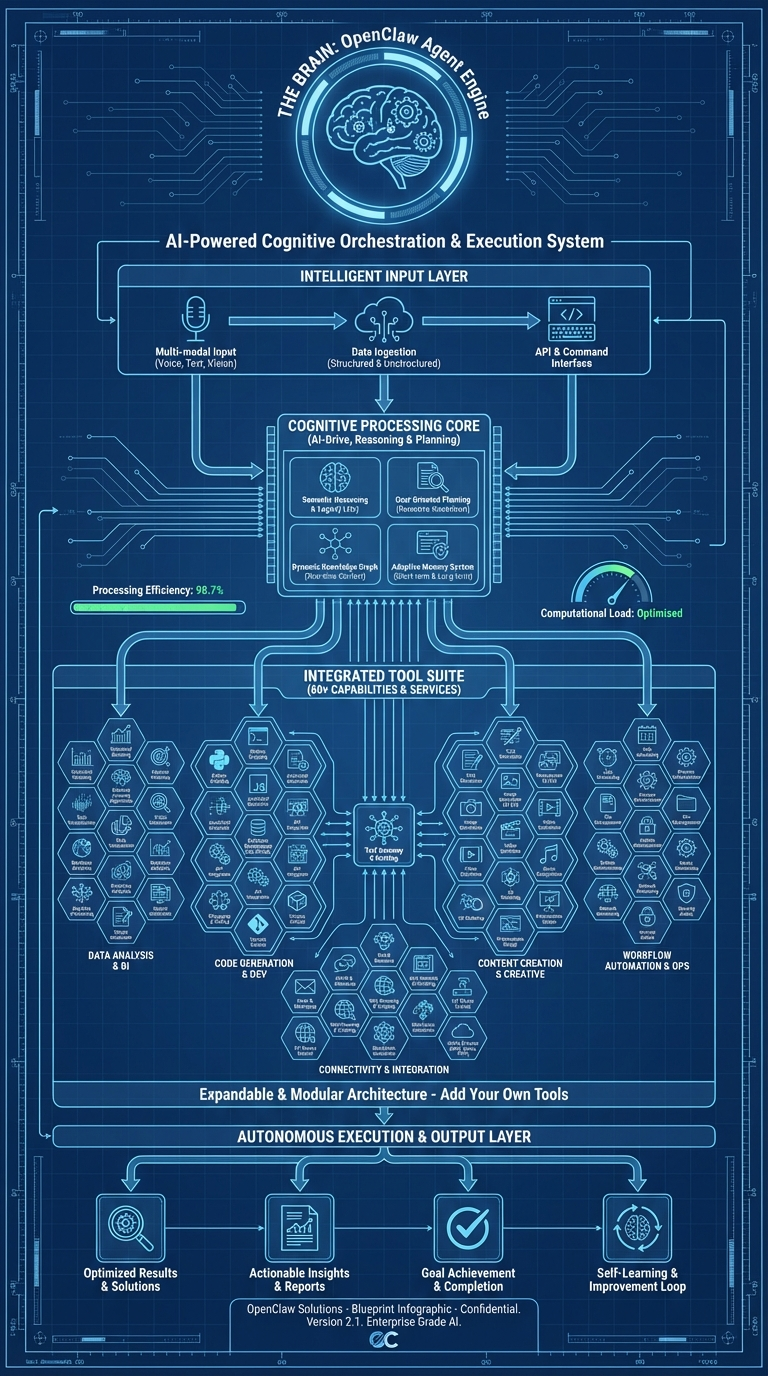
This infographic maps the cognitive architecture — how OpenClaw’s agent receives input, reasons, selects tools, and produces output. It’s labeled “AI-Powered Cognitive Orchestration & Execution System.”
Intelligence Input Layer
The top of the infographic shows five input sources: File System, Web Content, Chat Messages, System Events, and Memory/History. In the codebase, these are the context sources assembled by the system prompt builder in src/agents/system-prompt/.
The system prompt isn’t static — it’s dynamically assembled from 17+ sections:
- Identity — Agent persona (customizable via
SOUL.md) - Tooling — Available tools filtered by the active policy
- Safety — Constitutional AI principles
- Skills — Loaded from bundled, managed, and workspace directories
- Memory — From
MEMORY.mdandmemory/*.mdfiles - Workspace — Current directory context and project files
- Runtime — Platform, model, channel metadata
The docs explain the memory philosophy:
“OpenClaw memory is plain Markdown in the agent workspace. The files are the source of truth; the model only ‘remembers’ what gets written to disk.”
Memory files follow a specific pattern: memory/YYYY-MM-DD.md for daily logs (append-only), plus an optional MEMORY.md for curated long-term memory. When a session approaches compaction limits, OpenClaw triggers a silent agentic turn to flush important context to memory files before the conversation is summarized.
Cognitive Processing Core
The center of the infographic — Processing/Planning, AI Loop, Tool Selection, Context Management — maps directly to the agent execution loop in src/agents/pi-embedded-runner.ts:
runEmbeddedPiAgent()
  ├── Resolve workspace (per-agent or per-session)
  ├── Load config + select model
  ├── Rotate auth profiles (automatic failover on billing errors)
  ├── Build dynamic system prompt (17+ sections)
  ├── Create filtered tool set (60+ tools through 9-layer policy)
  ├── Enter agent loop:
  │   ├── Send prompt + tool definitions to LLM provider
  │   ├── Receive response (text and/or tool calls)
  │   ├── Execute tool calls (with policy + approval checks)
  │   ├── Append results to conversation history
  │   ├── Check context window limits (hard minimum threshold)
  │   └── Compact if necessary (automatic context summarization)
  └── Stream response blocks back to caller
The auth profile rotation system tracks billing errors per API key and rotates to the next available profile. The backoff window is configurable from 5 to 24 hours. The thinking level system supports reasoning modes (off, on, stream) and will automatically downgrade from xhigh → high → medium for models that don’t support extended thinking.
Integrated Tool Suite
The tool grid in the infographic represents the 38 core tool implementation files in src/agents/tools/, plus additional tools registered by plugins. Every tool implements the same interface:
type AgentTool<TSchema, TContext> = {
  label: string;
  name: string;
  description: string;
  parameters: TSchema;        // TypeBox schema
  execute: (toolCallId: string, params: unknown, context?: TContext)
    => Promise<AgentToolResult>;
}
The tools docs confirm the design:
“OpenClaw exposes first-class agent tools for browser, canvas, nodes, and cron. These replace the old
openclaw-*skills: the tools are typed, no shelling, and the agent should rely on them directly.”
Key tool implementations include:
- browser-tool.ts — Full Playwright/CDP browser control (navigate, screenshot, evaluate, autonomous browsing)
- canvas-tool.ts — Rich UI rendering via A2UI protocol
- nodes-tool.ts — Device capability invocation (camera, screen, location)
- web-search.ts — Brave Search API with Perplexity fallback
- sessions-spawn-tool.ts — Sub-agent spawning with model inheritance
- cron-tool.ts — Gateway scheduled task management
- image-tool.ts — Image understanding and generation
- tts-tool.ts — Text-to-speech synthesis
Autonomous Execution & Output Layer
The bottom of the infographic shows General Tools, Special Agent, and Specialized Actions feeding into output. This corresponds to the sub-agent system (src/agents/subagent-registry.ts) and the block streaming mechanism.
The sub-agent registry manages child agents that can be spawned for parallel or specialized tasks. Each sub-agent inherits from its parent but can have restricted tool access through the subagent policy layer — the 9th and final layer in the tool policy cascade.
The docs explain multi-agent routing:
“An agent is a fully scoped brain with its own: Workspace, State directory (agentDir), Session store.”
3. The Gateway & Message Pipeline: The Nerve Center
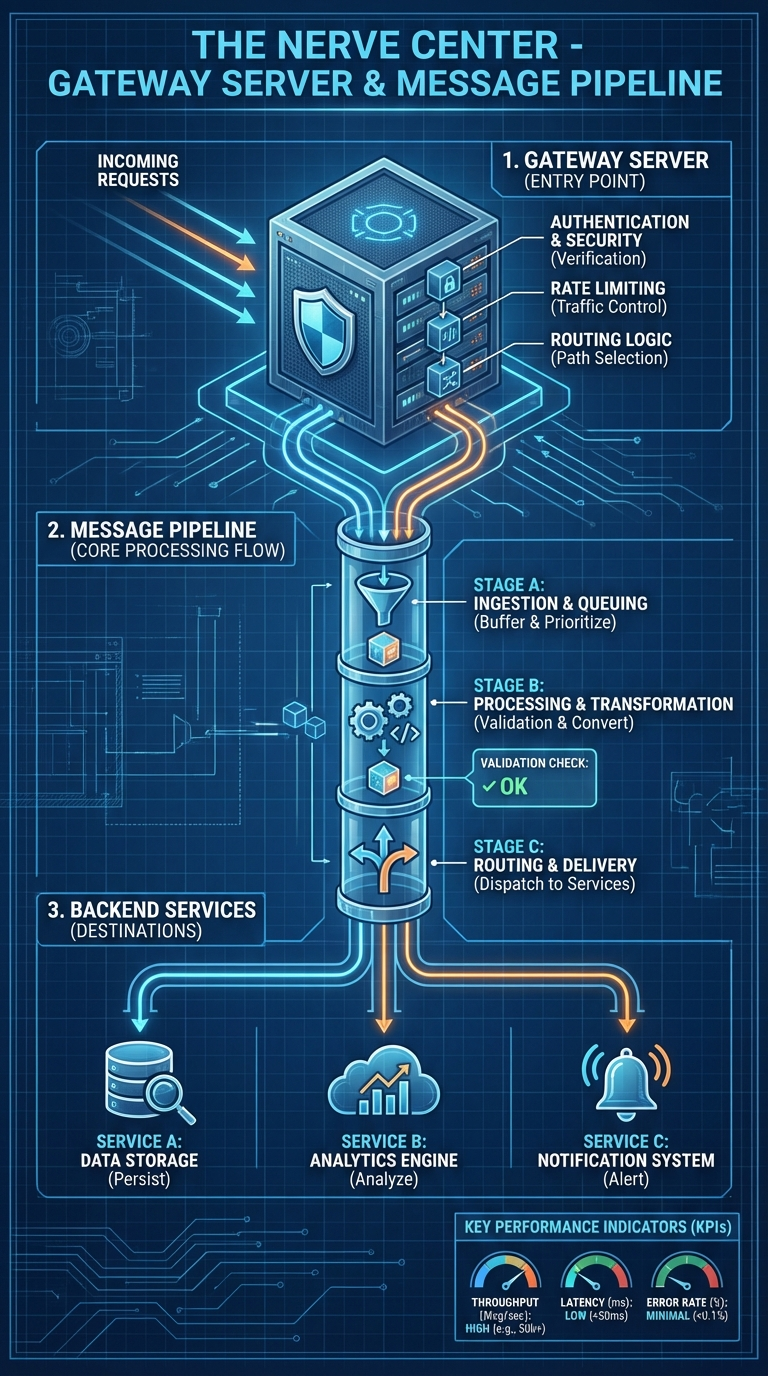
This infographic — “The Nerve Center” — traces the path from incoming request to delivered response. It’s the most operationally critical diagram for anyone building integrations.
1. Gateway Server (Entry Point)
The infographic shows four gateway functions: Authentication & Security, Rate Limiting, Routing Logic, and File Handling.
In the codebase, the gateway server initializes in src/gateway/server.impl.ts through the startGatewayServer(port, opts) function. The startup sequence is:
- Config validation and migration
- Plugin auto-enable (based on environment)
- Plugin loading and gateway method registration
- HTTP/HTTPS + WebSocket server creation
- Channel monitor startup (all enabled channels)
- mDNS/Bonjour service broadcasting
- Skill watcher initialization
- Health snapshot timer (every 10 seconds)
- Cron service startup
- Exec approval manager creation
- Config reloader (file watcher)
Authentication is handled in src/gateway/auth.ts with three modes:
- Token auth — Bearer token matching via
OPENCLAW_GATEWAY_TOKEN - Password auth — Username/password validation
- Tailscale identity — Zero-config auth via Tailscale network (
server-tailscale.ts)
The protocol docs specify:
“First frame must be
connect. Requests:{type:"req", id, method, params}→{type:"res", id, ok, payload|error}. Events:{type:"event", event, payload, seq?, stateVersion?}”
Rate limiting is implemented through lane-based concurrency control in src/gateway/server-lanes.ts and per-channel debounce configuration. Queue caps and drop policies prevent overload.
Routing uses session keys (src/routing/session-key.ts) that encode channel, sender, and thread context to route messages to the correct agent session.
2. Message Pipeline Core Processing Flow
The infographic breaks the pipeline into three stages: A (Ingestion & Queuing), B (Processing & Transformation), and C (Routing & Delivery).
In the actual code, the pipeline lives in src/auto-reply/ with 121 implementation files. The getReplyFromConfig() orchestrator processes messages through:
Stage A — Ingestion & Queuing:
inbound.ts— Message ingestion from channelinbound-debounce.ts— Batching rapid messages from the same senderenvelope.ts— Message envelope wrapping (timestamp, timezone, elapsed time)- Queue management with 5 modes:
- steer — New messages update the current prompt (default)
- interrupt — Abort current processing, start fresh
- followup — Queue behind current processing
- collect — Batch messages before processing
- steer-backlog — Steer with backlog awareness
Stage B — Processing & Transformation:
command-auth.ts— Authorization checkscommand-detection.ts— Slash command detection (/status,/help, etc.)commands-registry.ts— Command registry lookupreply-directives.ts— Directive parsing (@audio-as-voice,@reply-to,@media)- Agent dispatch to
runEmbeddedPiAgent() - LLM interaction with tool execution
Stage C — Routing & Delivery:
- Block streaming with coalescing — rapid blocks merged for rate-limited channels
send-policy.ts— Delivery policy (direct-only, group-all)- Channel-specific formatting via
ChannelMessagingAdapter - Response chunking based on channel capabilities
3. Backend Services
The infographic’s backend layer — Data Storage, Analytics Engine, Notification System — maps to:
- Data Storage: SQLite with FTS5 + sqlite-vec for memory, file-based session transcripts
- Analytics: Session cost tracking (
src/infra/session-cost/), usage accumulation in the agent runner - Notifications: Heartbeat system (
src/auto-reply/heartbeat.ts), typing indicators viaChannelStreamingAdapter
4. The Channel Plugin System: One Gateway, Every Platform
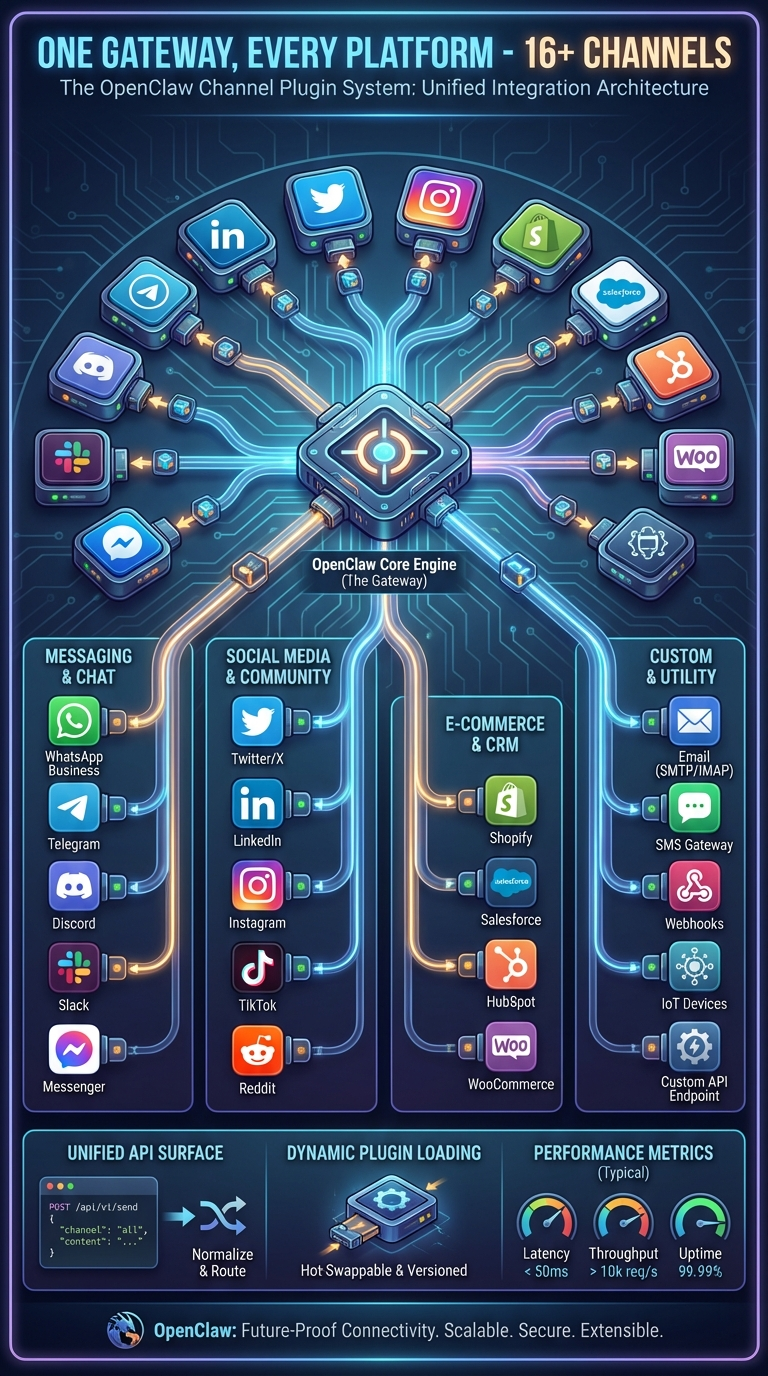
This infographic — “One Gateway, Every Platform — 16+ Channels” — shows the OpenClaw Core Engine at the center with connections radiating out to Messaging & Chat, Social Media & Community, E-Commerce & CRM, and Custom channels.
The ChannelPlugin Interface
Every platform integration implements the ChannelPlugin interface defined in src/channels/plugins/types.plugin.ts. This is the contract that makes unified multi-channel possible:
type ChannelPlugin<ResolvedAccount, Probe, Audit> = {
  id: ChannelId;
  meta: ChannelMeta;
  capabilities: ChannelCapabilities;

  // 22 adapter slots:
  config: ChannelConfigAdapter<ResolvedAccount>;     // Required
  outbound?: ChannelOutboundAdapter;                  // Message delivery
  status?: ChannelStatusAdapter;                      // Health checks
  setup?: ChannelSetupAdapter;                        // Config wizard
  pairing?: ChannelPairingAdapter;                    // Device pairing
  security?: ChannelSecurityAdapter;                  // DM policies
  groups?: ChannelGroupAdapter;                       // Group handling
  mentions?: ChannelMentionAdapter;                   // @mention detection
  streaming?: ChannelStreamingAdapter;                // Typing indicators
  threading?: ChannelThreadingAdapter;                // Reply-to support
  messaging?: ChannelMessagingAdapter;                // Rich formatting
  actions?: ChannelMessageActionAdapter;              // React/edit/unsend
  heartbeat?: ChannelHeartbeatAdapter;                // Keepalive
  agentTools?: ChannelAgentToolFactory;               // Channel-specific tools
  directory?: ChannelDirectoryAdapter;                // Contact lookup
  gateway?: ChannelGatewayAdapter;                    // Custom RPC methods
  agentPrompt?: ChannelAgentPromptAdapter;            // System prompt hints
  resolver?: ChannelResolverAdapter;                  // Target normalization
  auth?: ChannelAuthAdapter;                          // Login flows
  elevated?: ChannelElevatedAdapter;                  // Privilege escalation
  commands?: ChannelCommandAdapter;                   // Custom commands
  onboarding?: ChannelOnboardingAdapter;              // Setup wizards
};
What the Infographic’s Bottom Bar Means
The infographic highlights three capabilities at the bottom: Unified API Surface, Dynamic Plugin Loading, and Performance Metrics.
Unified API Surface: The plugin SDK at extensions/src/plugin-sdk/index.ts exports 390+ types. This is the only stable API surface for extension development. The docs are explicit:
“Plugins run in-process with the Gateway. Treat them as trusted code.”
Dynamic Plugin Loading: Plugins are discovered and loaded via Jiti (a TypeScript/JavaScript module loader) with four discovery paths in precedence order:
- Config paths (
plugins.load.paths) - Workspace extensions (
<workspace>/.openclaw/extensions/*.ts) - Global extensions (
~/.openclaw/extensions/*.ts) - Bundled extensions (shipped with OpenClaw)
Performance Metrics: Each channel provides status diagnostics through the ChannelStatusAdapter — probe connectivity, audit security configuration, and report issues with severity levels. The gateway runs health snapshots every 10 seconds.
Channel-Specific Notes from the Docs
WhatsApp: “Gateway owns the session(s). Multiple WhatsApp accounts (multi-account) in one Gateway process. Login via openclaw channels login (QR via Linked Devices).”
Telegram: “Production-ready for bot DMs + groups via grammY. Long-polling by default; webhook optional.”
Discord: “Direct chats collapse into the agent’s main session. Guild channels stay isolated as agent:<agentId>:discord:channel:<channelId>.”
5. Native Apps: Your AI Everywhere
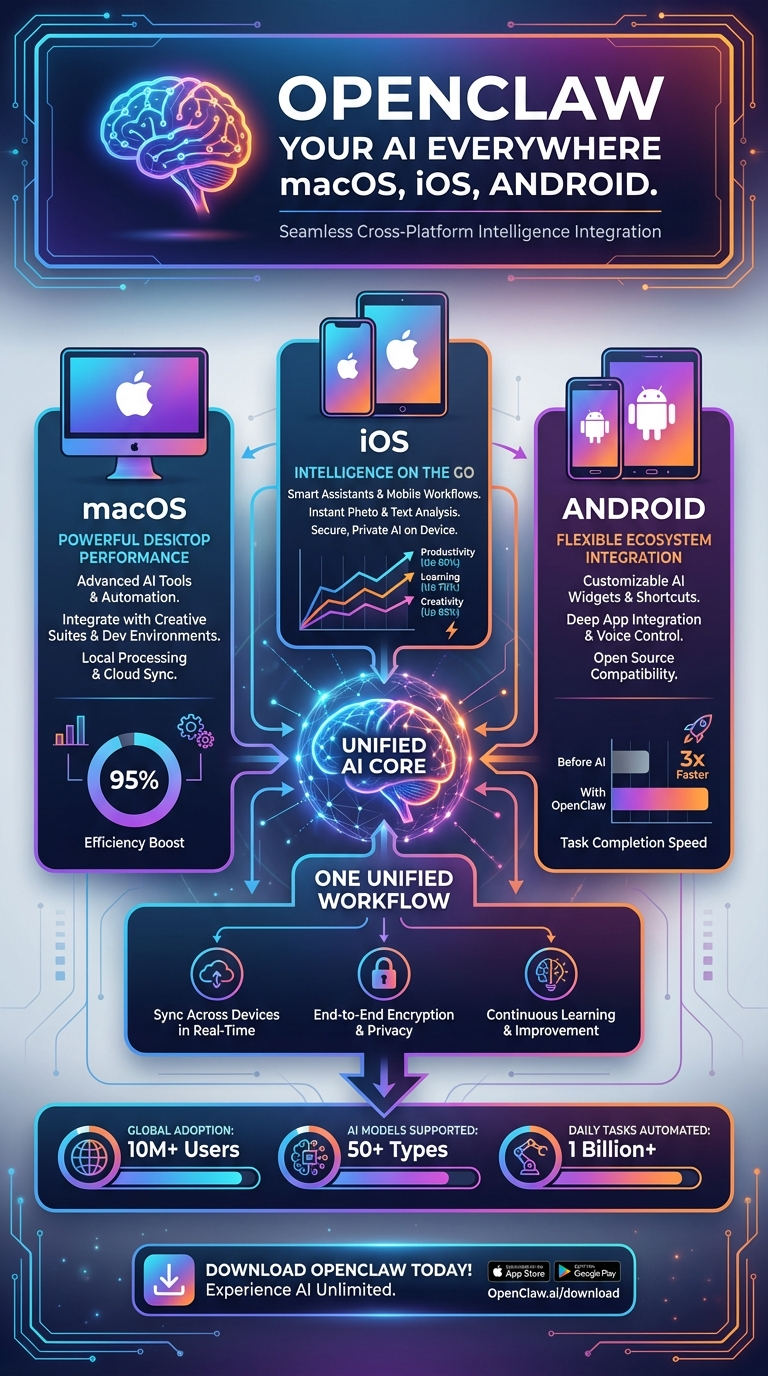
This infographic — “OpenClaw Your AI Everywhere: macOS, iOS, Android” — shows the three native apps converging on a “Unified AI Core.”
What Native Apps Actually Are
In the OpenClaw architecture, native apps aren’t just chat clients. They’re nodes — devices that register with the gateway and expose hardware capabilities for the agent to use.
The docs define it:
“A node is a companion device (macOS/iOS/Android/headless) that connects to the Gateway WebSocket with
role: 'node'and exposes a command surface (e.g.canvas.*,camera.*,system.*) vianode.invoke.”
macOS App — 297 Swift Files
Location: apps/macos/
Framework: Swift/SwiftUI + Combine
Type: Menu bar application with popover chat
The macOS app is the most feature-complete native client. Key source files:
- GatewayConnection.swift — WebSocket client implementing Gateway Protocol v3
- GatewayProcessManager.swift — Can embed and manage the gateway process directly
- VoiceWakeRuntime.swift — Voice wake system (“Hey OpenClaw”)
- TalkModeController.swift — Continuous voice conversation mode
- ScreenRecordService.swift — Screen recording capability exposed to agents
- CameraCaptureService.swift — Camera capture capability
- CanvasManager.swift — A2UI canvas orchestration for rich UI
- ConfigStore.swift + ConfigFileWatcher.swift — Config management with hot reload
- GatewayAutostartPolicy.swift — LaunchAgent auto-start configuration
- Sparkle framework for auto-updates
iOS App — 63 Swift Files
Location: apps/ios/
Framework: Swift/SwiftUI + Combine
Architecture: MVVM with service layer
Shared code: Uses OpenClawKit package
The iOS app exposes the richest set of device capabilities:
| Service Directory | Capability |
|---|---|
Camera/ |
Front + rear camera capture |
Location/ |
GPS coordinates, geocoding |
Contacts/ |
Contact search and access |
Calendar/ |
Calendar event queries |
Motion/ |
Accelerometer, gyroscope data |
Screen/ |
Screen capture |
Media/ |
Photo/video library access |
Reminders/ |
Reminders access |
These capabilities are exposed to the agent through the nodes.invoke gateway method. An agent on Telegram can ask your iPhone to take a photo, get your GPS location, or check your calendar — all through the same gateway connection.
Android App — 63 Kotlin Files
Location: apps/android/
Framework: Kotlin/Jetpack Compose + Hilt DI
Architecture: MVVM
Key implementation files:
- NodeForegroundService.kt — Persistent foreground service maintaining gateway connection
- CameraHudState.kt — Camera HUD for capture
- LocationMode.kt — Location services
- ScreenCaptureRequester.kt — Screen capture
- VoiceWakeMode.kt + WakeWords.kt — Voice wake detection
- SecurePrefs.kt — Encrypted preference storage
- NodeRuntime.kt — Node runtime managing device capability registration
The Shared OpenClawKit — 78 Swift Files
Location: apps/shared/ (OpenClawKit Swift Package)
Modules: Protocol, Kit, ChatUI
This is the shared layer between macOS and iOS:
- Protocol — WebSocket Gateway Protocol v3 implementation
- Kit — Shared services (session management, authentication)
- ChatUI — Reusable chat interface components
If you’re building a custom native app for OpenClaw, this package is your starting point.
Device Capabilities as Agent Tools
The infographic’s “One Unified Workflow” center shows all three platforms connecting to the same AI core. In practice, this means an agent can orchestrate across devices:
| Capability | macOS | iOS | Android |
|---|---|---|---|
| Camera capture | Yes | Yes | Yes |
| Screen recording | Yes | Yes | Yes |
| GPS location | — | Yes | Yes |
| Contacts access | — | Yes | — |
| Calendar events | — | Yes | — |
| Health data | — | Yes | — |
| Motion sensors | — | Yes | Yes |
| Voice wake | Yes | Yes | Yes |
| Talk mode | Yes | Yes | Yes |
6. Security & Configuration: Defense in Depth
The sixth infographic covers the broader technology landscape that OpenClaw operates within — AI & Automation, quantum computing trends, extended reality, and sustainable tech. Let’s zoom into what OpenClaw specifically implements for security and configuration, since this is the most critical topic for anyone deploying agents in production.
The 9-Layer Tool Policy Engine
OpenClaw’s security crown jewel is the tool policy cascade in src/agents/tool-policy.ts. Nine layers are evaluated in order, and a deny at any layer blocks the tool:
- Profile policy — Base access level (minimal, coding, messaging, full)
- Provider-specific profile — Override by which LLM is running
- Global policy — Project-wide tool allow/deny rules
- Provider-specific global — Provider overrides on global rules
- Per-agent policy — Agent-specific tool access
- Agent provider policy — Provider overrides per individual agent
- Group policy — Channel/sender-based restrictions
- Sandbox policy — Docker isolation tool restrictions
- Subagent policy — Child agent tool propagation (always equal or fewer than parent)
Security Audit System — 30+ Automated Checks
The security audit in src/security/audit.ts runs comprehensive checks across six categories:
Filesystem Security:
- State directory permissions (
~/.openclaw) — warns on group/world readable, critical on writable - Config file permissions — critical on world-readable/writable
- Symlink detection with remediation suggestions
Gateway Security:
- Bind mode validation — critical alert if binding to LAN without authentication
- Token strength assessment
- Tailscale exposure checks
- Control UI exposure analysis
Channel Security:
- DM policy enforcement — critical if
dmPolicy="open"withallowFrom=["*"] - Group policy validation
- Per-channel allowlist verification
Tool & Execution Security:
- Exec security modes:
deny,allowlist,full - Exec approval configuration with ask modes:
off,on-miss,always - Safe bins whitelist:
["jq", "grep", "cut", "sort", "uniq", "head", "tail", "tr", "wc"]
Skill Security:
The skill scanner (src/security/skill-scanner.ts) performs pattern-based vulnerability detection:
- Command injection patterns
- Data exfiltration attempts
- Suspicious URL patterns
- File system traversal attempts
Content Sanitization:
The sanitizer (src/security/sanitize.ts) detects prompt injection with 15+ detection patterns in user messages and tool results.
SSRF Protection
src/infra/net/ssrf.ts implements DNS pinning via createPinnedDispatcher():
- Blocks private IPs: 10.x, 192.168.x, 127.x, 172.16-31.x, 100.64-127.x
- Blocks IPv6 link-local: fe80::, fc::, fd::
- Blocks metadata endpoints:
metadata.google.internal,localhost - Configurable hostname allowlist
- Custom
SsrFBlockedErrorexception type
Exec Approval System
src/infra/exec-approvals.ts gates command execution:
- Unix socket:
~/.openclaw/exec-approvals.sock - Token-based authentication with real-time approval prompts
- Glob-style pattern matching for allowlists
- Per-agent allowlist overrides
- Auto-allow for skills (optional, configurable)
The docs describe the security posture:
“Pairing + Local Trust: All WS clients include a device identity on connect. New device IDs require pairing approval; the Gateway issues a device token for subsequent connects.”
Configuration System — 200+ Fields, Hot Reload
The config system in src/config/schema.ts uses JSON5 + Zod validation across 25 sections:
- meta, update, diagnostics, logging
- gateway (port, bind, auth, TLS, Tailscale)
- nodeHost, agents, tools, bindings, audio
- models (provider configs, auth profiles)
- messages, commands, session, cron, hooks
- ui, browser, talk
- channels (per-channel config)
- skills, plugins, discovery, presence, voicewake
The docs emphasize strict validation:
“OpenClaw only accepts configurations that fully match the schema. Unknown keys, malformed types, or invalid values cause the Gateway to refuse to start for safety.”
Hot reload: The ConfigFileWatcher monitors the config file and triggers re-validation on change. Per-plugin reload configuration determines what gets restarted — channel monitors can restart independently while the agent context refreshes with new parameters.
Environment variable interpolation: Config values support ${ENV_VAR} syntax for keeping secrets out of files.
How These Layers Work Together
The six infographics aren’t isolated views — they’re slices of a single coherent system. Here’s how they connect:
[Infographic 4: Channels]  →  [Infographic 3: Gateway Pipeline]
                                         ↓
                              [Infographic 2: Agent Engine]
                                         ↓
                              [Infographic 1: Full Architecture]
                                    ↙         ↘
        [Infographic 5: Native Apps]    [Infographic 6: Security]
- A message arrives through a channel (Infographic 4)
- The gateway pipeline processes it through authentication, queuing, and routing (Infographic 3)
- The agent engine reasons about the message, selects tools, and generates a response (Infographic 2)
- The response flows back through the full architecture stack (Infographic 1)
- Native apps can be invoked as tool targets during agent execution (Infographic 5)
- Security policies gate every tool call, exec command, and channel interaction (Infographic 6)
The Numbers
| Metric | Count |
|---|---|
| Total source files | 4,885 |
| Total tokens | 6,832,044 |
| Channel integrations | 20+ |
| Agent tools | 60+ |
| Plugin extensions | 34 |
| Gateway RPC methods | 70+ |
| Tool policy layers | 9 |
| Security audit checks | 30+ |
| CLI commands | 50+ |
| Test files | 971 |
| E2E tests | 50 |
| Config schema fields | 200+ |
| Plugin SDK type exports | 390+ |
| System prompt sections | 17+ |
What This Means for Builders
If you’re building in the OpenClaw ecosystem, these infographics are your map. Here’s how to use them:
Building an agent management service? Start with Infographic 3 (Gateway). Your integration point is the WebSocket server on port 18789 speaking JSON-RPC. Use config.schema to auto-generate configuration UIs. Monitor with gateway.status and channels.status.
Adding a new messaging platform? Start with Infographic 4 (Channels). Implement the ChannelPlugin interface — config, outbound, and status adapters are the minimum. Register via api.registerChannel(). Import only from the plugin SDK.
Customizing agent behavior? Start with Infographic 2 (Agent Engine). The system prompt builder in src/agents/system-prompt/ is where behavior is shaped. Drop a SOUL.md in the workspace for persona customization. Write skills as Markdown SKILL.md files for new capabilities.
Deploying at scale? Start with Infographic 6 (Security). Run runSecurityAudit() as part of your health checks. Understand the 9-layer tool policy cascade. Use Docker sandboxing for multi-tenant environments. Configure exec approvals for production safety.
Building a native app? Start with Infographic 5 (Native Apps). Study OpenClawKit for the Gateway Protocol v3 implementation. Register your app as a node to expose device capabilities. The macOS app at 297 Swift files is the most complete reference implementation.
The code is open. The architecture is documented. The infographics are your visual index into a system that’s becoming the infrastructure layer for how AI agents operate in the world.
Now go build something on it.
This analysis is based on a complete mapping of the OpenClaw repository — 4,885 files, 6.8 million tokens — cross-referenced with official documentation and annotated with real source-code paths and function signatures.
The Global Builders Club runs weekly workshops on OpenClaw deployment, plugin development, and agent infrastructure. Join us at globalbuilders.club.