
How to Connect Your OpenClaw Agent to LinkedIn: The Complete 2026 Guide
LinkedIn has no native OpenClaw channel. But your AI agent can still post, read feeds, search jobs, and manage your presence — if you pick the right integration path.

OpenClaw connects natively to WhatsApp, Telegram, Discord, Slack, and Gmail. LinkedIn isn’t on that list. It’s the most-requested missing integration, and for good reason: LinkedIn is where professional relationships, job opportunities, and business development happen. Your AI agent should be there.
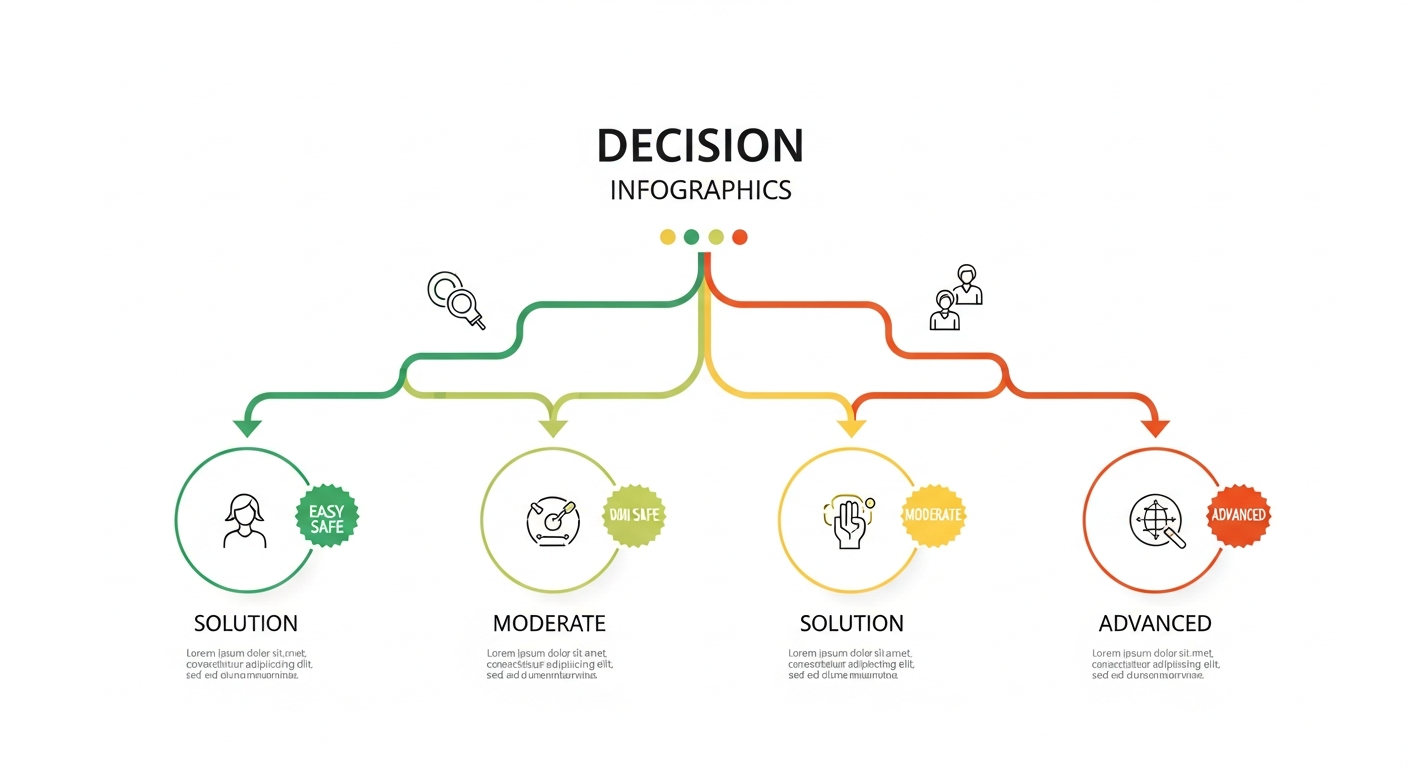
The good news: based on research across 50+ sources — official API documentation, open-source MCP servers, community-built skills, and real user discussions on Reddit and Hacker News — there are four legitimate ways to bridge OpenClaw and LinkedIn today. Each has different tradeoffs in setup time, capabilities, and risk.
Here’s how they compare, and exactly how to set each one up.
The Landscape: Why LinkedIn Is Different
Before diving into solutions, it helps to understand why LinkedIn doesn’t have a native OpenClaw channel like Telegram or Discord.
LinkedIn actively prohibits automation. Their User Agreement explicitly bans “bots or unauthorized automated methods” for accessing the platform, sending messages, creating posts, or driving engagement. Violations can result in account restrictions, throttled visibility, or permanent bans.
Their official API is gated. LinkedIn’s Partner Program approval takes 3-6 months with less than 10% of applications accepted. Only registered legal entities (LLCs, corporations) can apply — individual developers are excluded. Self-service API access is limited to basic profile data and posting.
But the reality is nuanced. Entire industries exist around LinkedIn automation, and LinkedIn’s enforcement primarily targets spam and data scraping. As one Reddit user put it: “LinkedIn mostly shrugs” at tools that help users manage their time without degrading the ecosystem. Cloud-based approaches with human-like behavior are the consensus safest path in 2026.
With that context, here are your four options.
Option 1: Postiz Agent CLI (Recommended)
Setup time: 5 minutes | Risk: Low | Capabilities: Post, Schedule, Analytics
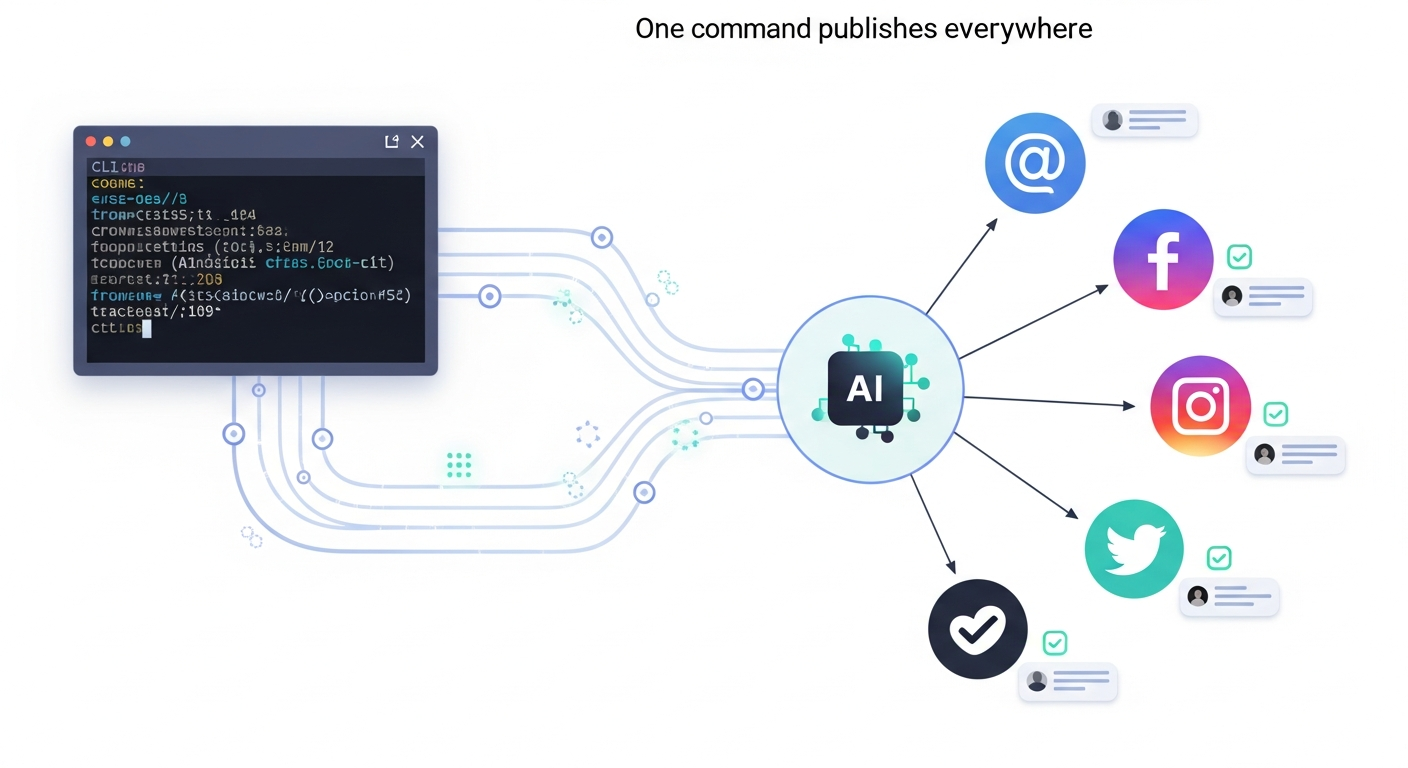
Postiz is the fastest path from “I want my agent on LinkedIn” to actually being there. It’s an open-source, self-hosted social media scheduler with a CLI built specifically for AI agents. It’s already available as an OpenClaw skill on ClawHub.
Why Postiz Wins
Postiz supports 30+ platforms — LinkedIn, X, Reddit, Instagram, YouTube, TikTok, Threads, and more — through a single CLI. Every command returns structured JSON. It includes a SKILL.md file that OpenClaw automatically discovers, so your agent knows exactly what it can do without you writing any glue code.
Most importantly, Postiz uses OAuth to connect your LinkedIn account. You authenticate once through the Postiz dashboard, and your agent posts through that authorized connection. This is the approach LinkedIn is least likely to flag, because from their perspective, you are posting — through an authorized application.
Setup
Step 1: Install the Postiz CLI globally:
npm install -g postiz
Step 2: Get your API key from postiz.com (or self-host via Docker Compose for full control):
export POSTIZ_API_KEY=your_api_key_here
Step 3: Connect your LinkedIn account through the Postiz web dashboard. Navigate to Integrations > LinkedIn > Connect Account. Complete the OAuth flow.
Step 4: OpenClaw discovers Postiz automatically. Your agent can now:
"Schedule a LinkedIn post for tomorrow at 9am: Just shipped our new API — here's what we learned building it."
"Show me my LinkedIn posting queue for this week."
"Create a campaign: post to LinkedIn and X every Tuesday and Thursday at 10am for the next month."
What You Can Do
| Capability | Supported |
|---|---|
| Create posts | Yes |
| Schedule posts | Yes |
| Multi-platform posting | Yes (30+ platforms) |
| Media uploads (images, video) | Yes |
| Analytics | Yes |
| Read feed | No |
| Send messages | No |
| Search profiles/jobs | No |
Self-Hosting Option
For full data control, self-host Postiz with Docker Compose:
git clone https://github.com/gitroomhq/postiz-app.git
cd postiz-app
docker compose up -d
Then point your agent to your local instance instead of the cloud service. Same capabilities, zero third-party data exposure.
Option 2: LinkedIn MCP Servers
Setup time: 15-30 minutes | Risk: Medium | Capabilities: Post, Read Feed, Search, Message
If Postiz covers posting but you want full LinkedIn interaction — reading your feed, searching profiles, finding jobs, even messaging connections — MCP servers are the answer. Multiple open-source implementations exist, and they plug directly into OpenClaw’s MCP architecture.

The Best Options
felipfr/linkedin-mcpserver — The most full-featured. TypeScript, MIT license, active development. Exposes five tools: profile search, profile retrieval, job search, messaging, and network stats. This is the closest thing to a complete LinkedIn channel for your agent.
adhikasp/mcp-linkedin — Python-based, focused on feed reading and job matching. Three tools: retrieve LinkedIn feed posts, search jobs, and analyze job matches against a resume. Lightweight and fast to set up. Uses the unofficial linkedin-api Python library.
FilippTrigub/linkedin-mcp — Specifically for posting from Claude Desktop. Supports text and media attachments. The simplest option if posting is all you need.
Setup (felipfr/linkedin-mcpserver)
Step 1: Clone and build:
git clone https://github.com/felipfr/linkedin-mcpserver.git
cd linkedin-mcpserver
npm install
npm run build
Step 2: Configure your LinkedIn credentials in the .env file (see the repo’s .env.example).
Step 3: Add to your OpenClaw MCP configuration. If you’re running OpenClaw locally:
openclaw mcp add linkedin --command "node /path/to/linkedin-mcpserver/build/index.js"
Or if running on Augmi, add the MCP server configuration through the dashboard settings.
Step 4: Test with your agent:
"Search LinkedIn for TypeScript developers in San Francisco."
"Show me my LinkedIn feed — what are people talking about today?"
"Send a message to [connection name]: 'Saw your post about AI agents — would love to chat.'"
Setup (adhikasp/mcp-linkedin)
For the Python-based option, it’s even simpler:
claude mcp add linkedin -- uvx --from "git+https://github.com/adhikasp/mcp-linkedin" mcp-linkedin
Set your LinkedIn credentials as environment variables:
export LINKEDIN_EMAIL=your_email@example.com
export LINKEDIN_PASSWORD=your_password
Important Warning
Both felipfr/linkedin-mcpserver and adhikasp/mcp-linkedin use unofficial LinkedIn APIs (the internal Voyager API) rather than LinkedIn’s official developer API. This means:
- They work — accessing the same endpoints that linkedin.com uses internally.
- They violate LinkedIn’s Terms of Service — Section 8.2 prohibits unauthorized automated access.
- Account risk exists — LinkedIn could restrict your account if they detect automated behavior.
- The API can break — LinkedIn changes internal endpoints without notice.
Use these for personal productivity, not mass outreach. Treat your LinkedIn account like a real person would: natural pacing, genuine engagement, reasonable volumes.
Option 3: Mixpost (For Registered Businesses)
Setup time: 30 minutes | Risk: Low | Capabilities: Post, Schedule, Analytics across 11 platforms
Mixpost is an open-source, self-hosted social media management platform. If you’re a registered business (LLC, corporation, 501©), Mixpost gives you access to LinkedIn’s official Community Management API — meaning fully compliant posting with zero account risk.
Why Mixpost Matters
Mixpost’s LinkedIn integration goes through the official API approval process, but because Mixpost itself handles the application, individual users don’t need to apply separately. You connect your LinkedIn account through Mixpost’s dashboard, and it manages the API relationship.
The catch: LinkedIn’s Community Management API is only available to legal entities. If you’re an individual developer or hobbyist, Mixpost’s LinkedIn integration won’t work for you. Use Postiz instead.
Setup
Step 1: Self-host Mixpost (requires PHP 8.2+, MySQL/PostgreSQL, Redis):
# Docker is the fastest path
docker pull inovector/mixpost
docker compose up -d
See the official documentation for detailed setup.
Step 2: Connect your LinkedIn account in the Mixpost dashboard. Navigate to Social Accounts > Add Account > LinkedIn.
Step 3: Install the OpenClaw skill:
clawhub install mixpost
Step 4: Configure with your Mixpost URL and API token in your agent’s config.
What You Get
Mixpost covers 11 platforms: LinkedIn, Facebook, X/Twitter, Instagram, Pinterest, TikTok, YouTube, Mastodon, Threads, Bluesky, and more. One setup gives your agent access to all of them — making it a compelling choice for businesses managing multi-channel presence.
Option 4: Direct API Integration (DIY)
Setup time: 1-3 hours | Risk: Varies | Capabilities: Depends on approach
If you want maximum control, you can integrate LinkedIn directly into your OpenClaw agent’s workflow using third-party APIs. Several services provide clean REST APIs for LinkedIn data:
For Data Enrichment (Read-Only)
Proxycurl — CCPA/GDPR compliant B2B data enrichment. Person profiles, company profiles, contact info, employee data. Python and JavaScript SDKs. Pay-per-use pricing. Best for research and lead qualification.
RapidAPI LinkedIn endpoints — Simple REST API for profile data, posts, comments, reactions. No OAuth required. $10/month for 500 requests. Easiest to integrate as a custom tool.
For Full Automation
Unipile — Unified messaging API covering LinkedIn (all tiers), WhatsApp, and email. 500+ endpoints, real-time sync, specifically built for AI agents. Node.js SDK available. Enterprise pricing. The most capable option but the most expensive.
Example: Adding Proxycurl as a Custom Tool
You can give your OpenClaw agent LinkedIn research capabilities by adding Proxycurl as a custom skill:
# Install the SDK
npm install proxycurl-js-linkedin-profile-scraper
Then create a simple skill that wraps the API:
// In your agent's skills directory
const { ProxycurlApi } = require('proxycurl-js-linkedin-profile-scraper');

const api = new ProxycurlApi({ apiKey: process.env.PROXYCURL_API_KEY });

// Your agent can now: "Research the LinkedIn profile of [person] at [company]"
const profile = await api.getPersonProfile({ linkedinProfileUrl: url });
The Decision Matrix
| Approach | Setup | Posting | Reading | Messaging | Jobs | Risk | Cost |
|---|---|---|---|---|---|---|---|
| Postiz | 5 min | Yes | No | No | No | Low | Free (self-host) |
| MCP Server | 15-30 min | Yes | Yes | Yes | Yes | Medium | Free |
| Mixpost | 30 min | Yes | No | No | No | None | Free (self-host) |
| Proxycurl | 1-3 hr | No | Yes | No | Yes | None | Pay-per-use |
| Unipile | 1-3 hr | Yes | Yes | Yes | No | Low | Enterprise |
Our Recommendation
For most users: Start with Postiz. Install the skill, connect your LinkedIn account, and your agent can post within 5 minutes. It covers the most common use case (scheduling content) with the lowest risk and zero cost.
If you need feed reading or job search: Add an MCP server alongside Postiz. Use Postiz for posting (lower risk, OAuth-based) and the MCP server for reading and searching (unofficial API, higher capability).
If you’re a registered business: Use Mixpost for fully compliant LinkedIn access through the official API.
If you need data enrichment: Add Proxycurl or RapidAPI as a complementary tool for profile research and lead qualification.
Safety Best Practices
Regardless of which approach you choose, follow these guidelines to keep your LinkedIn account safe:
-
Always keep a human in the loop. Review posts before they go live. Don’t let your agent send connection requests or messages autonomously.
-
Respect LinkedIn’s rate limits. No more than 100-200 connection requests per week. Limit posts to 1-2 per day. Space actions naturally — not at exact 60-second intervals.
-
Use OAuth when possible. Postiz and Mixpost both use OAuth, which is the approved way to interact with LinkedIn. MCP servers using the Voyager API bypass this.
-
Don’t scrape at scale. Reading your own feed is different from scraping thousands of profiles. Keep your agent’s behavior personal, not industrial.
-
Use a dedicated account for testing. Before connecting your primary LinkedIn to any automation, test with a secondary account to understand the behavior and risks.
-
Monitor for warnings. If LinkedIn shows you a CAPTCHA, a “we noticed unusual activity” message, or temporarily restricts your account, stop automation immediately and wait 24-48 hours.
What’s Next
LinkedIn is the last major professional platform without a native OpenClaw channel. The community is actively working on closing that gap — the LinkedIn MCP Server by felipfr has picked up significant traction, and the Postiz and Mixpost skills on ClawHub make posting accessible today.
The pattern is always the same: token, config, gateway. Your AI agent is only as useful as the platforms it can reach.

Based on research across 50+ sources including LinkedIn’s official API documentation, open-source MCP server repositories on GitHub, OpenClaw ClawHub skills, and community discussions on Reddit, Hacker News, and Twitter/X.