Your OpenClaw agent can read your emails, search Google Drive, check your calendar, and update spreadsheets. Here’s how to set it up in 20 minutes.
What You’re Setting Up
The gog skill (short for “Google on the Go”) is a Google Workspace CLI tool created by Peter Steinberger. It provides command-line access to Gmail, Calendar, Drive, Docs, Sheets, Contacts, Tasks, and more—all with JSON-first output that your OpenClaw agent can parse and understand.
Once installed, your agent can execute commands like gog gmail search "urgent" or gog drive search "budget spreadsheet" and process the results conversationally. It supports multiple Google accounts, read-only modes, and works on both hosted (Augmi) and self-hosted OpenClaw instances.
This isn’t a third-party integration that stores your data elsewhere. OAuth tokens live locally in your agent’s encrypted storage, and you control exactly which Google APIs your agent can access.
Prerequisites
Before starting, you’ll need:
- OpenClaw running (on Augmi.world or self-hosted)
- Terminal access or chat interface to your agent
- A Google account (personal or Workspace)
- 20 minutes for setup
If you’re on Augmi, you can do this entire process through chat—no terminal required. Your agent will walk you through it.
Step 1: Install the gog Skill
There are three ways to install the gog skill on your OpenClaw agent.
Option A: Ask Your Agent (Recommended)
Just say:
“Install the gog Google Workspace skill”
Your agent will search ClawHub, download the skill, and configure it. If the bot confuses “gog” with gaming-related terms, be more specific:
“Install the GG Google Workspace skill from ClawHub”
Option B: Via ClawHub CLI
If you have terminal access to your agent:
clawhub install gog
This downloads the skill definition and dependencies from the ClawHub registry.
Option C: Via Homebrew (Self-Hosted)
If you’re running OpenClaw on macOS or Linux with Homebrew:
brew install steipete/tap/gogcli
This installs the gog binary directly to your system PATH.
Pro tip: Your agent can walk you through this entire setup process. Just paste the OAuth credentials (coming in Step 2) into the chat and ask questions as you go. The agent will run the commands, handle authentication, and verify everything works.
Step 2: Create Google Cloud Project & OAuth Credentials
This is the main configuration step. You’ll create a Google Cloud project, enable the necessary APIs, and generate OAuth credentials for your agent.
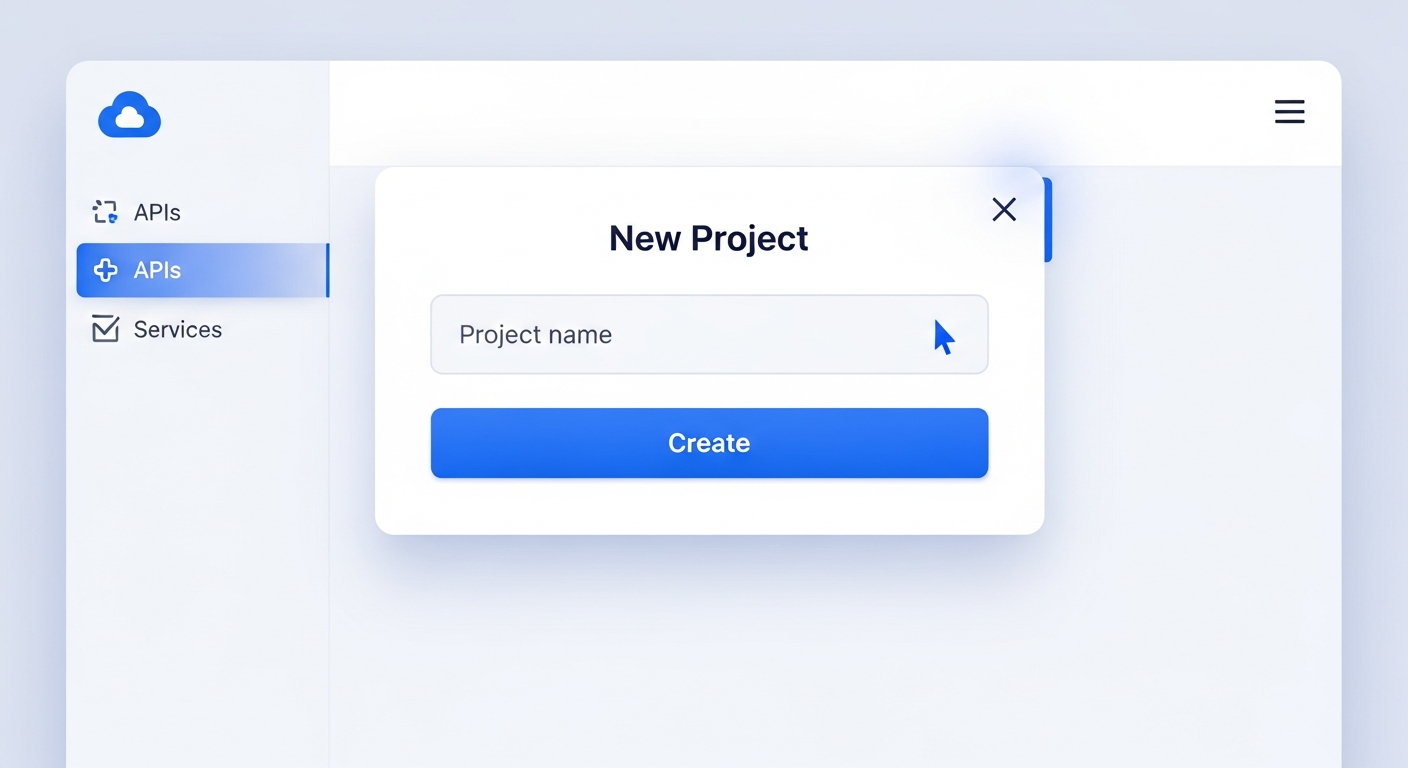
2.1: Create a Google Cloud Project
- Go to console.cloud.google.com
- Click the project dropdown (top-left) and select New Project
- Name it something like
OpenClaw-DriveorMy-Agent-Workspace - Click Create
2.2: Enable Google APIs
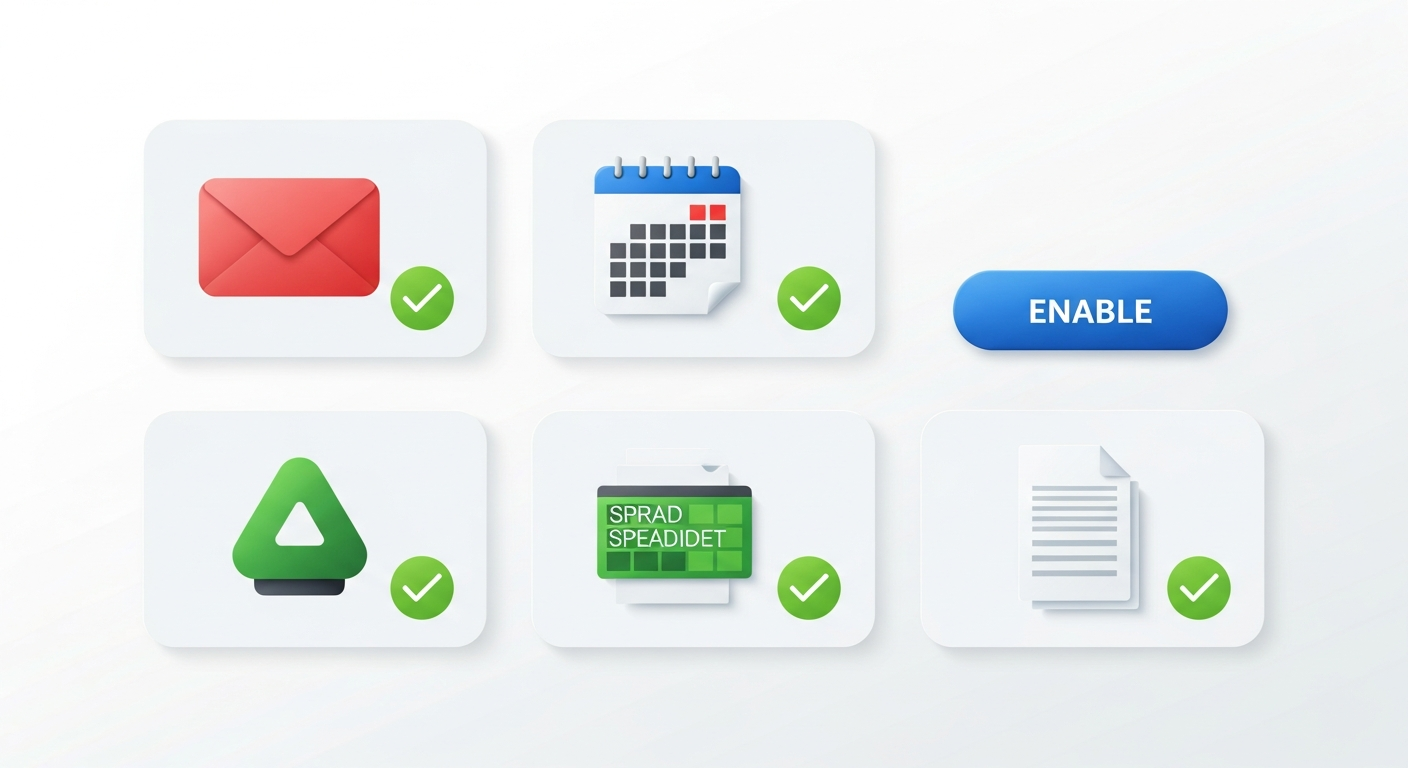
Navigate to APIs & Services > Library in the left sidebar. Search for and enable these APIs:
- ✅ Google Drive API (essential)
- ✅ Google Sheets API (recommended)
- ✅ Google Docs API (recommended)
- ✅ Gmail API (optional, for email access)
- ✅ Google Calendar API (optional, for calendar access)
Click Enable on each one. This tells Google which services your OAuth credentials are allowed to access.
2.3: Configure OAuth Consent Screen
Before creating credentials, you need to configure the OAuth consent screen (what users see when granting permissions).
- Go to APIs & Services > OAuth consent screen
- Select External user type (unless you have a Google Workspace account and want internal-only)
- Click Create
- Fill in the required fields:
- App name: e.g.,
OpenClaw-Drive - User support email: Your email
- Developer contact email: Your email
- App name: e.g.,
- Click Save and Continue
- On the Scopes screen, click Save and Continue (gog will request scopes dynamically)
- On the Test users screen, click Add Users and add your email address
- Click Save and Continue
CRITICAL STEP: Click Publish App and set the app status to Production.
If you leave the app in “Testing” mode, OAuth tokens expire after 7 days and you’ll see invalid_grant errors. This is the most common setup mistake. Publishing to Production makes tokens valid indefinitely (until revoked). You can use the app without Google verification for personal use—verification is only required if you want to distribute it to others.
2.4: Create OAuth Client Credentials
Now create the actual credentials:
- Go to APIs & Services > Credentials (or navigate to Google Auth Platform > Clients if you see the new UI)
- Click Create Credentials > OAuth client ID
- For Application type, select Desktop app
- Name it (e.g.,
OpenClaw-Drive) - Click Create
A dialog appears with your client ID and secret. Download the JSON file immediately—client secrets are only visible once at creation time. If you lose this file, you’ll need to delete the credentials and create new ones.
The JSON file looks like this:
{
  "installed": {
    "client_id": "123456789-abc.apps.googleusercontent.com",
    "project_id": "openclaw-drive-123456",
    "auth_uri": "https://accounts.google.com/o/oauth2/auth",
    "token_uri": "https://oauth2.googleapis.com/token",
    "client_secret": "GOCSPX-abc123...",
    "redirect_uris": ["http://localhost"]
  }
}
Step 3: Connect Credentials to OpenClaw
You have two paths: chat with your agent (recommended for Augmi users) or use the terminal/CLI.
Path A: Chat with Your Agent (Recommended)
This is the easiest way if you’re running an agent on Augmi.
-
Open a chat with your OpenClaw agent (Telegram, Discord, or the Control Panel)
-
Say:
“I want to connect my Google Workspace account. Here are my OAuth credentials:”
-
Paste the entire contents of the downloaded JSON file into the chat
-
The agent will save it and run the authentication commands
-
The agent will generate an authorization URL—click it, log into your Google account, and grant permissions
-
Google redirects to a callback URL with a
codeparameter -
Paste the authorization code back into the chat
Your agent handles the token exchange and saves the credentials. Done.
Here’s what that looks like in practice:
You: “I want to set up Google Drive access. Here are my credentials: { “installed”: { “client_id”: “123…”, … } }”
Agent: “Got it. I’ve saved your credentials. Let me start the OAuth flow. Click this link to authorize: https://accounts.google.com/o/oauth2/auth?client_id=…”
You: “Here’s the code: 4/0ABC…”
Agent: “Authentication successful! I can now access your Google Drive, Gmail, and Calendar. Try asking me to search your Drive or check your inbox.”
Path B: Terminal/CLI
If you prefer the command line or are on a self-hosted instance:
# Save the credentials file
gog auth credentials ~/Downloads/client_secret_*.json

# Authenticate and specify services
gog auth add you@gmail.com --services gmail,calendar,drive,contacts,sheets,docs
This opens your browser for OAuth. After granting access, tokens are saved to your OS keychain.
For headless/remote servers, use the --manual flag:
gog auth add you@gmail.com --services gmail,calendar,drive --manual
This prints the authorization URL. Copy it, open in a browser on any machine, complete OAuth, and paste the code back.
Set a default account to avoid specifying --account on every command:
export GOG_ACCOUNT=you@gmail.com
Step 4: Verify and Test
Time to confirm everything works.
Test via Chat
Ask your agent:
- “List files in my Google Drive”
- “Check my inbox for anything urgent from the past week”
- “What’s on my calendar today?”
- “Read the file called ‘Q1 Budget’ from my Drive”
- “Create a new Google Doc called ‘Meeting Notes’”
Your agent will execute gog commands behind the scenes and present the results conversationally.
Test via CLI
# Search recent emails
gog gmail search 'newer_than:7d' --max 5

# Search Drive for files
gog drive search "budget" --max 10

# Check today's calendar
gog calendar events primary --from $(date -I) --to $(date -I)

# List contacts
gog contacts list --max 10
If you see your data, you’re connected. If you see errors about missing scopes, re-run gog auth add --force to re-authenticate with the correct permissions.
What You Can Do Now
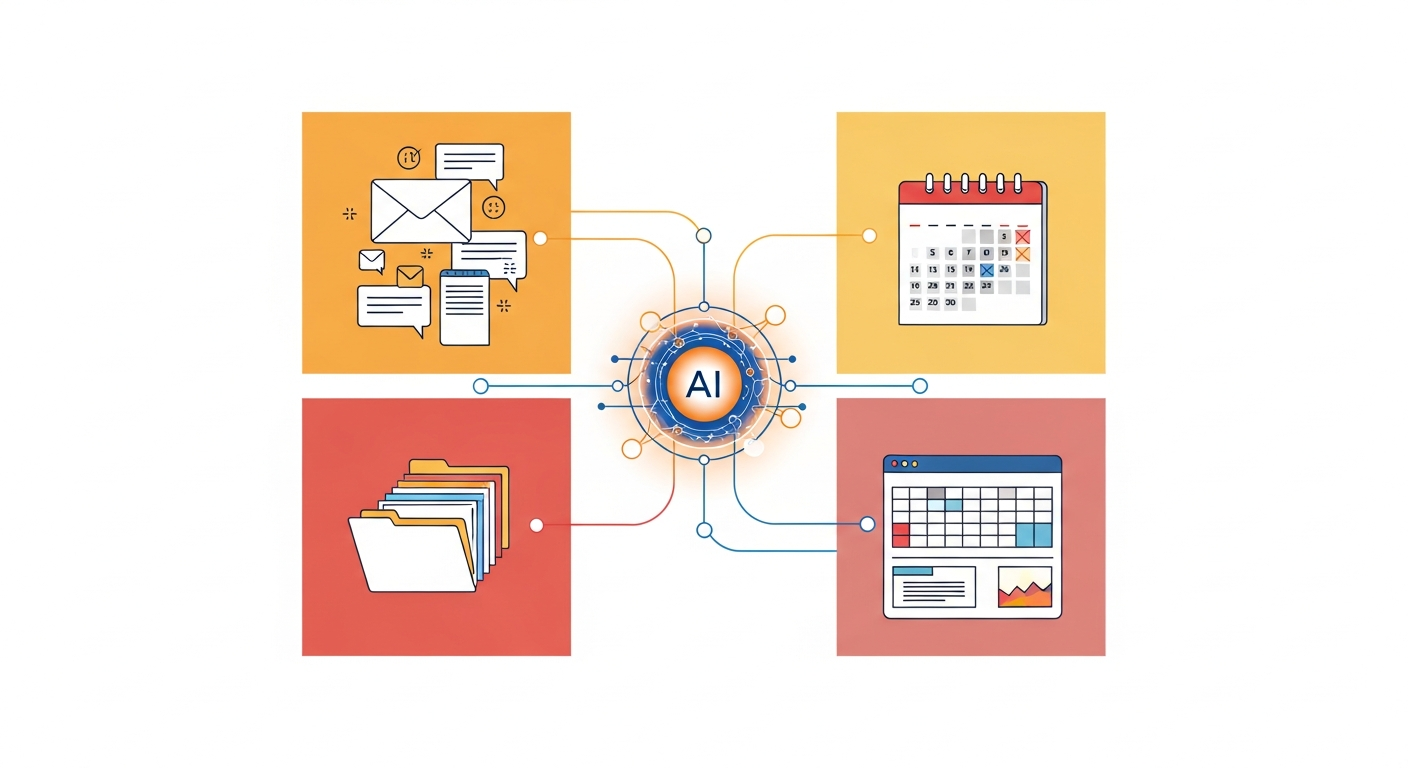
Your OpenClaw agent is connected to your entire Google Workspace. Here’s what becomes possible:
Gmail
- “Find emails from Sarah about the project deadline”
- “Summarize the 3 most important emails from today”
- “Draft an email to john@example.com about the meeting”
gog gmail search 'from:sarah@example.com subject:deadline'
gog gmail send --to john@example.com --subject "Meeting" --body "..."
Google Calendar
- “What meetings do I have this week?”
- “Add a 30-minute meeting with Alex tomorrow at 2pm”
- “Do I have any free time on Friday afternoon?”
gog calendar events primary --from 2026-02-17 --to 2026-02-21
Google Drive
- “Find the contract PDF I received last month”
- “Upload this report to my ‘Reports’ folder”
- “Share the proposal doc with teammate@example.com”
gog drive search "contract" --type pdf --max 10
gog drive upload report.pdf --parent <folderId>
Google Sheets
- “What’s in cell A1 of my Budget sheet?”
- “Add a new row with today’s sales data”
- “Update the status column for row 15”
gog sheets get "<sheetId>" "Sheet1!A1:D10" --json
gog sheets append "<sheetId>" "Sheet1!A:C" --values-json '[["2026-02-16","Product","100"]]' --insert INSERT_ROWS
Google Docs
- “Get the text from the project brief”
- “Export the client proposal as a text file”
gog docs cat <docId>
gog docs export <docId> --format txt --out /tmp/doc.txt
You can combine these. Try:
“Check my inbox for emails from clients this week, save any important information to a Google Doc, and add a calendar event to review them tomorrow.”
Troubleshooting
“invalid_grant” Error
Cause: OAuth app is in “Testing” mode—tokens expire after 7 days.
Fix: Go to APIs & Services > OAuth consent screen, click Publish App, set to Production. Then re-authenticate:
gog auth add you@gmail.com --force --services gmail,calendar,drive
“Access Denied” or “API Not Enabled”
Cause: Required APIs aren’t enabled in your Google Cloud project.
Fix: Go to APIs & Services > Library, search for the missing API, click Enable.
Headless Server / No Browser
Cause: Running OpenClaw on a remote server without a GUI.
Fix: Use --manual flag:
gog auth add you@gmail.com --services gmail,drive --manual
Or SSH tunnel port 8085:
ssh -L 8085:localhost:8085 user@your-server.com
“redirect_uri_mismatch” Error
Fix: Edit your OAuth client in the Google Cloud Console and add http://localhost:8085/callback to Authorized redirect URIs.
Security Best Practices
Use Read-Only When Possible
If your agent only needs to read data:
gog auth add you@gmail.com --services gmail,drive --readonly
This prevents your agent from sending emails, deleting files, or modifying documents.
Consider a Dedicated Google Account
Create a separate account (e.g., myagent@gmail.com), share relevant Drive folders and calendars with it, and authenticate gog with that account. This isolates your agent’s access.
Revoke Access Anytime
Go to myaccount.google.com/permissions, find your OAuth app, and click Remove Access. Tokens become invalid immediately.
Review Skill Code
The gog skill is open-source. Before installing from ClawHub, inspect the code:
clawhub info gog
Token Storage
OAuth tokens are stored in your OS keychain (macOS Keychain / Linux Secret Service) or encrypted local storage. On Augmi, they’re in your agent’s persistent volume at /data/.config/gog/, encrypted at rest.
Closing
Your OpenClaw agent is now your Google Workspace assistant. Instead of switching between Gmail tabs, Drive folders, and Calendar views, just ask:
“What do I need to focus on today?”
Your agent pulls from your calendar, inbox, and task list to give you a unified answer.
If you run into issues, ask your agent directly—it has access to the full gog documentation and can troubleshoot itself. Or drop into our Discord community for help.
Happy building.
Related guides: